Connecting Victron Cerbo GX to Marine MFDs via HTML5 App
Updated 9 September 2026 · By SolarNevs Research Desk, Dealer surveys + verified sources · 1 source · Method ↗
Key Takeaways
- The Cerbo GX integrates with Marine MFDs by presenting its Remote Console as an HTML5 web application.
- Ensure your Cerbo GX has an active Ethernet or WiFi connection to the same network as your MFD.
- Your Marine MFD must support HTML5 web browser functionality to display the Cerbo GX interface.
- If integration fails, first verify network settings and MFD browser capabilities before advanced troubleshooting.
How do I connect my Victron Cerbo GX to a Marine MFD using the HTML5 App?
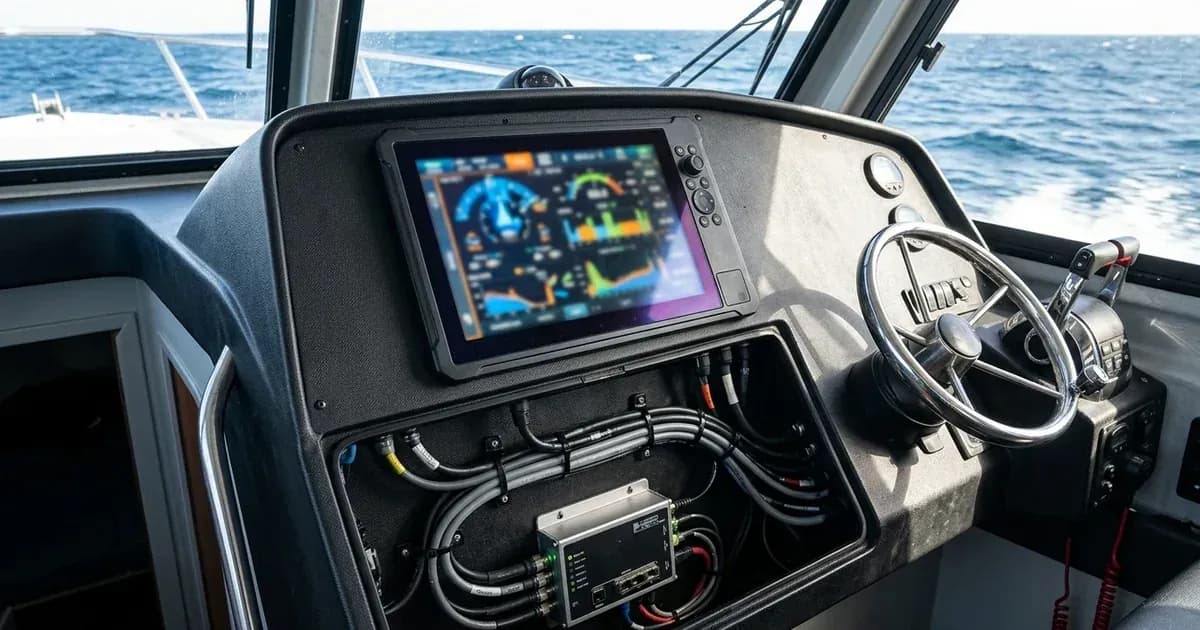
The Victron Cerbo GX integrates with Marine Multi-Functional Displays (MFDs) like Garmin, Simrad, and Raymarine by presenting its Remote Console as an HTML5 web application. This allows you to monitor your Victron energy system directly on your MFD screen. The primary method involves connecting the Cerbo GX to the same network as your MFD, typically via Ethernet or WiFi, and then accessing the Cerbo GX's web interface through the MFD's browser.
Diagnosis
Connecting your Cerbo GX (part number BPP900450100) to a marine MFD involves ensuring proper network connectivity and correct settings on both devices. Follow these steps to diagnose common issues.
- Verify Cerbo GX Network Connection:
- Check: Ensure your Cerbo GX is connected to your boat's network via its Ethernet LAN port or WiFi. The manual states that the Cerbo GX supports internet connectivity via an "Ethernet LAN port" and "WiFi."
- Meaning: If the Cerbo GX is not connected to the network, the MFD will not be able to access its web interface. Confirm the Cerbo GX has an active IP address.
- Check MFD Network Connectivity:
- Check: Confirm that your Marine MFD is also connected to the same network as the Cerbo GX. This can be via Ethernet or WiFi, depending on your MFD's capabilities.
- Meaning: Both devices must be on the same local area network (LAN) for direct communication.
- Access Cerbo GX Remote Console via a Standard Web Browser:
- Check: Before trying the MFD, use a laptop, tablet, or smartphone connected to the same network to access the Cerbo GX's Remote Console. Open a web browser and enter the Cerbo GX's IP address. The manual notes that the Remote Console is accessible via a "web browser."
- Meaning: If you cannot access the Remote Console from another device, the issue lies with the Cerbo GX's network setup or its internal web server, not the MFD.
- Confirm MFD HTML5 Browser Functionality:
- Check: Consult your MFD's manual or settings to ensure it has a functional web browser that supports HTML5. The Victron manual refers to "Marine MFD integration by App," implying the use of a web-based application.
- Meaning: Some older or simpler MFDs may not have a full-featured web browser, preventing them from displaying the Cerbo GX interface. The manual lists "Raymarine MFD Integration," "Navico MFD Integration" (Simrad), "Garmin MFD Integration," and "Furuno MFD Integration" as supporting this method.
- Check Cerbo GX Display & Appearance Settings:
- Check: On the Cerbo GX, navigate to
Settings → General → Display & Appearance. Ensure the "New UI" user interface is enabled, as this manual follows its structure. Also, activate the "Boat page" if you intend to use its specific marine-oriented display features, as described in the manual: "To enable the Boat page, go to • Settings → General → Display & Appearance → Boat page and activate it." - Meaning: Incorrect UI settings can prevent the optimal display of information on the MFD. The "Boat page" provides specific marine-related data views.
- Check: On the Cerbo GX, navigate to
Cause/fix table section
Symptom detail | Likely cause | Fix |
|---|---|---|
Marine MFD cannot display Cerbo GX data | No network connection between Cerbo GX and MFD | Ensure the Cerbo GX is connected via Ethernet or WiFi to the same network as the MFD. |
Cerbo GX Remote Console not loading on MFD | MFD's web browser does not support HTML5 or is not configured correctly | Consult your MFD's manual for web browser functionality. On the Cerbo GX, ensure the "New UI" user interface is enabled via |
Data not appearing on MFD's "Boat page" | "Boat page" feature not activated on Cerbo GX | Activate the "Boat page" in Cerbo GX settings: |
Incorrect or missing data on MFD display | Cerbo GX sensors or devices not properly configured or connected | Verify all connected Victron devices and sensors are recognized by the Cerbo GX and configured correctly within its settings. |
Integrating the Cerbo GX HTML5 App with Marine MFDs
The Victron Cerbo GX acts as a communication hub, running the Venus OS operating system, which provides a web-based Remote Console. This Remote Console is an HTML5 application that can be displayed on compatible Marine MFDs, offering a unified view of your energy system alongside your navigation and other marine data.
Network Setup
For the HTML5 App integration, your Cerbo GX (part number BPP900450100) and your Marine MFD must be on the same local network.
- Ethernet Connection: The most reliable connection is typically via Ethernet. Connect an Ethernet cable from the Cerbo GX's LAN port to your boat's network switch or router. The manual highlights the "Ethernet LAN port" as a primary method for internet connectivity.
- WiFi Connection: Alternatively, the Cerbo GX can connect to your boat's WiFi network. Configure the WiFi settings on the Cerbo GX to join the same network that your MFD is connected to. The manual mentions "WiFi" as another option for internet connectivity.
- IP Address: Once connected, identify the IP address of your Cerbo GX. This can usually be found in the Cerbo GX's settings menu under Network.
MFD Compatibility and Access
The Victron manual specifically notes "Marine MFD integration by App" for several brands, including "Raymarine MFD Integration," "Navico MFD Integration" (which covers Simrad), "Garmin MFD Integration," and "Furuno MFD Integration."
- Accessing the Web Browser: On your Marine MFD, locate and open its built-in web browser application. The exact steps will vary by MFD brand and model.
- Entering the IP Address: In the MFD's web browser, enter the IP address of your Cerbo GX. This should load the Cerbo GX Remote Console, which is the HTML5 application.
- "New UI" Setting: To ensure the interface displays correctly, verify that the "New UI" user interface is enabled on your GX device. This setting is found under
Settings → General → Display & Appearance → User interface. - "Boat page" Activation: For marine-specific data presentation, activate the "Boat page" on your Cerbo GX via
Settings → General → Display & Appearance → Boat page. This page can display configurable values for power, speed, and RPM gauges, and offers options for inverted motor direction, as noted in the manual.
Display Customization
The Cerbo GX offers various display settings that can enhance its appearance on your MFD:
- Electrical Power Display: You can select how electrical values are displayed, choosing between "Power (Watts)," "Current (Amps)," or "Mixed (AC in Watts, DC in Amps)."
- Unit Selection: Configure units for temperature (Celsius, Fahrenheit), volume (Cubic metres, Litres, Gallons (US), Gallons (Imperial)), and speed (Kilometres per hour, Metres per second, Miles per hour, Knots) to match your preferences.
Safety:
When working with any electrical system, safety is paramount. The Cerbo GX is a communication device, but it connects to high-voltage systems.
- Installation Environment: Always install the Cerbo GX in a heat-resistant environment, keeping it away from chemicals, plastic parts, curtains, textiles, or other flammable materials.
- Operating Conditions: Use the equipment only under its specified operating conditions. Do not operate it in wet or damp environments. Never use the product in areas where gas or dust explosions may occur.
- User Access: This device must not be used by individuals (including children) with reduced physical, sensory, or mental capabilities, or lack of experience and knowledge, unless supervised or properly instructed. The GX device must be installed in a location where it is not accessible to unauthorised persons.
- High Voltage (DC): If the DC voltage in your system exceeds 60V, the Cerbo GX is classified as a “built-in product.” In such cases, the installation must prevent user access to the terminals to comply with safety standards.
- Ground Loops: The GX device connects to various system components. To prevent ground loops, ensure appropriate isolation practices are followed during installation.
- Relay Limits: If utilizing the Cerbo GX's relays, be sure to observe the voltage and current limits as specified in the technical specifications.
When to call a technician instead
While many integration steps are straightforward, some situations warrant professional assistance. You should call a qualified marine electronics technician if:
- You cannot establish basic network connectivity between your Cerbo GX and MFD after following the diagnostic steps.
- Your MFD's web browser consistently fails to load the Cerbo GX Remote Console, even after confirming HTML5 support.
- You are unsure about configuring network settings on either the Cerbo GX or your Marine MFD.
- The Cerbo GX itself is experiencing operational issues, such as not booting or unexpected reboots, as indicated by fault modes like "GX device reboots itself."
- Your system involves DC voltages exceeding 60V, requiring specialized installation to ensure terminals are inaccessible to unauthorized persons, as per safety guidelines.
- You encounter persistent issues with data display or control that cannot be resolved through basic settings adjustments.
Frequently asked questions
What is the Victron Cerbo GX?
The Cerbo GX is a powerful member of the GX product family, functioning as an advanced communication centre that monitors and controls energy systems. It runs the Venus OS operating system.
How does the Cerbo GX connect to Marine MFDs?
The Cerbo GX integrates with Marine Multi-Functional Displays (MFDs) via an HTML5 App. This connection is typically established over Ethernet or WiFi, allowing the MFD to display the Cerbo GX's Remote Console.
Which MFD brands support Cerbo GX integration?
The Victron manual specifies Marine MFD integration by App for Raymarine, Navico (which includes Simrad), Garmin, and Furuno MFDs.
Can I monitor my system remotely with the Cerbo GX?
Yes, the Cerbo GX allows for remote monitoring via the Victron Remote Management (VRM) portal, provided it has an internet connection.
What is the part number for the Cerbo GX?
The part number for the Cerbo GX is BPP900450100.
References
- Cerbo GX Manual — accessed 23 August 2026
Related guides
More from sizing, net billing & installation.