Fox ESS Cloud App WiFi Setup: Connect Your Inverter
Updated 15 September 2026 · By SolarNevs Research Desk, Dealer surveys + verified sources · 3 sources · Method ↗
Key Takeaways
- A common setup issue is attempting to connect to an unsupported 5.0 GHz Wi-Fi network. Fox ESS dataloggers require 2.4 GHz Wi-Fi.
- Always confirm the default datalogger password,
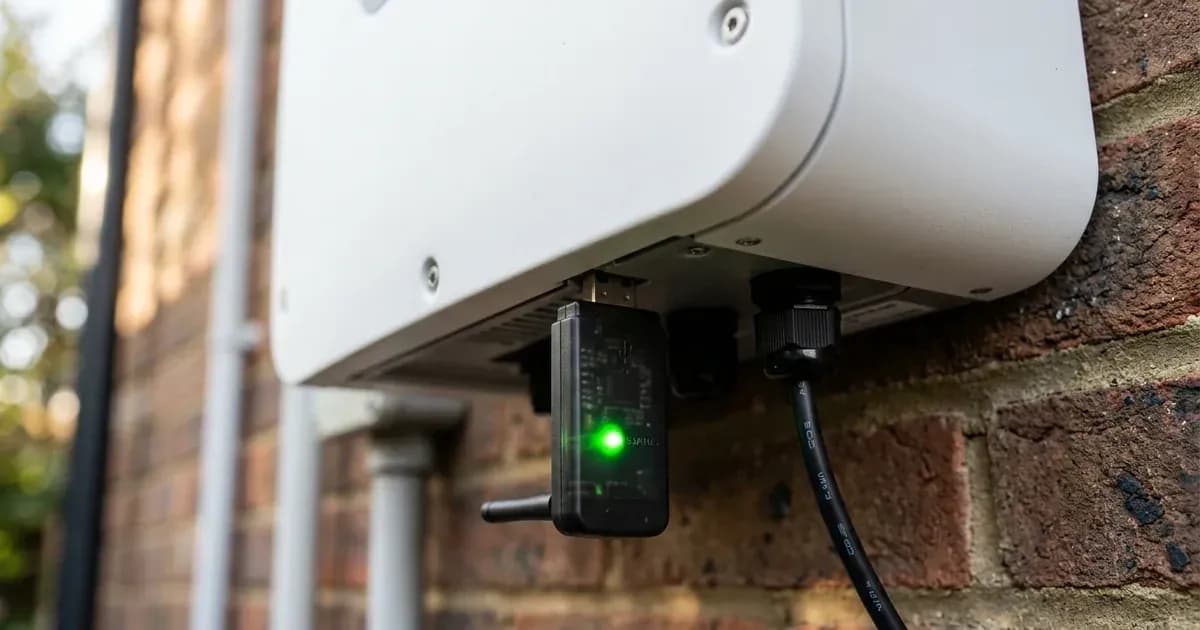
mtmt2020, during initial connection to the datalogger's own access point. - A solid green LED on the datalogger indicates successful connection to both your home Wi-Fi and the FoxCloud server.
- If the datalogger shows a solid red light after troubleshooting, or if you cannot safely access the inverter's physical port, stop and call a qualified technician.
Why won't my Fox ESS inverter connect to the FoxCloud app?
A common reason your Fox ESS inverter's datalogger might not connect to the FoxCloud app is using an unsupported 5.0 GHz Wi-Fi network or entering an incorrect password. Fox ESS Smart WiFi 2.0 dataloggers support only 2.4 GHz Wi-Fi. The first step in troubleshooting is to confirm your home Wi-Fi operates on the 2.4 GHz band and that you are using the correct default password for the datalogger itself.
Diagnosis
Follow these steps to diagnose common Fox ESS Cloud app and Wi-Fi connection issues. Each step involves an observable check and explains what the result means for your setup.
- Check Datalogger Physical Connection:
- Observable Check: Ensure the Smart WiFi 2.0 datalogger stick is firmly plugged into the USB/4-pin communication port on the bottom of your Fox ESS inverter.
- What it means: A loose connection can prevent the datalogger from powering on or communicating with the inverter. If the datalogger's LED lights are off, reseating it (power the inverter down first — see the Safety section below) is the first step.
- Verify Wi-Fi Network Band:
- Observable Check: Check your home Wi-Fi router settings or use a Wi-Fi analyzer app on your smartphone to confirm your network is broadcasting on the 2.4 GHz frequency.
- What it means: Fox ESS dataloggers support 2.4 GHz ONLY (802.11 b/g/n). They are strictly incompatible with 5.0 GHz networks. If your router uses a unified SSID for both bands, you may need to temporarily separate them in your router settings during setup.
- Confirm Datalogger AP Credentials:
- Observable Check: When connecting your smartphone directly to the datalogger's Wi-Fi network (SSID
W-xxxx), ensure you are using the default passwordmtmt2020. TheW-xxxxSSID will match the serial number printed on the datalogger stick. For legacy Gen 1 sticks, the password might be12345678. - What it means: An incorrect password for the datalogger's own access point will prevent your smartphone from connecting to it, making the setup process impossible.
- Observable Check: When connecting your smartphone directly to the datalogger's Wi-Fi network (SSID
- Check Home Wi-Fi Password:
- Observable Check: During the setup process in the FoxCloud 2.0 app or via the datalogger's local web interface, carefully enter your home 2.4 GHz Wi-Fi network password.
- What it means: A typo in your home Wi-Fi password will prevent the datalogger from joining your network, leading to a flashing red LED or a "Wi-Fi Disconnected" status.
- Interpret Datalogger LED Status:
- Observable Check: Observe the LED light on the Smart WiFi 2.0 datalogger stick.
- What it means:
- Solid Green: The datalogger is online and successfully connected to your local Wi-Fi router and the FoxCloud server. This indicates normal operation.
- Flashing Green: The datalogger is connected to your local Wi-Fi router but cannot reach the FoxCloud server. This often points to an issue with your home internet connection, router firewall settings, or DNS.
- Flashing Red / Slow Blink: The datalogger is unable to connect to your local Wi-Fi router, likely due to an incorrect Wi-Fi password or a weak signal.
- Solid Red: This indicates a hardware or initialization fault within the datalogger or a communication loss with the inverter's motherboard.
Common symptoms, causes, and fixes
Symptom detail | Likely cause | Fix |
|---|---|---|
Datalogger offline / Flashing Red LED | Incorrect Wi-Fi band (5.0 GHz unsupported) | Ensure your home router broadcasts a 2.4 GHz Wi-Fi network. Temporarily separate 2.4 GHz and 5 GHz bands if using a unified SSID. |
Cannot connect to | Incorrect datalogger AP password | Use the default password |
Flashing Green LED on datalogger | Connected to local router, but no FoxCloud access | Check your home broadband internet connection, router firewall, and DNS configuration. Ensure |
Solid Red LED on datalogger | Hardware fault or communication loss with inverter | Unplug and firmly reseat the USB datalogger stick (power the inverter down first — see the Safety section below). Verify the inverter power is on. If it persists, perform a full inverter power cycle. |
FoxCloud app shows "Offline" after setup | Datalogger not yet synchronized with cloud | Allow 2 to 5 minutes for the Smart WiFi stick to reboot and establish a cloud handshake. Confirm your home internet is stable. |
Slow or intermittent data updates in app | Weak Wi-Fi signal at inverter location | Improve Wi-Fi signal strength by moving the router closer or installing a 2.4 GHz Wi-Fi extender near the inverter. |
Setting up Your Fox ESS Inverter with the FoxCloud 2.0 App
Connecting your Fox ESS inverter to the FoxCloud 2.0 app allows you to monitor your solar system's performance in real-time. This process involves setting up the Smart WiFi 2.0 datalogger and configuring it through the app.
Datalogger Hardware & Credentials
Your Fox ESS inverter uses a Smart WiFi 2.0 Stick for monitoring. This stick plugs into a dedicated USB/4-pin communication port, typically located on the bottom of the inverter. For hardwired Ethernet or cellular monitoring, alternative Smart LAN or 4G sticks are available.
When setting up the Wi-Fi connection, you will interact with the datalogger's own access point (AP).
- Default AP SSID: This will appear as
W-<Datalogger Serial Number>, where the serial number is printed on the barcode label of the physical WiFi stick. - Default AP Password: The standard password for the Smart WiFi 2.0 stick is
mtmt2020. For older, legacy Gen 1 sticks, the password may be12345678. - Wi-Fi Network Compatibility: The datalogger supports 2.4 GHz ONLY (802.11 b/g/n) with WPA/WPA2-PSK encryption. It does not support 5.0 GHz networks. If you have a dual-band router with a unified network name, you might need to temporarily separate the 2.4 GHz and 5 GHz bands in your router settings during the initial setup phase.
Step-by-Step Commissioning Procedure (FoxCloud 2.0 App)
- Step 1 — Application Download & Account Creation:
- Download the FoxCloud 2.0 application from your smartphone's app store (Apple App Store for iOS or Google Play Store for Android).
- Open the app and tap "Sign Up."
- Enter a valid email address, create a secure password, and select the appropriate regional server (e.g., Global, Europe, or Asia).
- Step 2 — Plant Creation & Device Association:
- Once logged in, navigate to the
Plantsection within the FoxCloud 2.0 app. - Tap
Create Plantor the+icon, usually found in the top right corner. - Fill in the required plant details, such as Plant Name, Grid Connection Date, and System Capacity.
- Tap "Add Device." You will then be prompted to scan the QR Code / SN Barcode located on the Smart WiFi 2.0 datalogger stick or the inverter casing. This associates your physical inverter with your digital plant in the cloud.
- Once logged in, navigate to the
- Step 3 — Datalogger Network Provisioning (Bluetooth / AP Mode): You have two primary methods to connect the datalogger to your home Wi-Fi network:
- Method A (Bluetooth Quick Pairing):
- Enable Bluetooth on your smartphone.
- The FoxCloud 2.0 app should discover nearby Fox ESS dataloggers. Select yours from the list.
- Follow the on-screen prompts to select your local home 2.4 GHz Wi-Fi SSID and input your router's password.
- Method B (Local AP Mode):
- Temporarily disable your smartphone's mobile data.
- Go to your smartphone's Wi-Fi settings and connect to the datalogger's direct Wi-Fi network. This network will appear as
W-<Serial_Number>. - Use the default password
mtmt2020(or12345678for older sticks) to connect. - Once connected, either return to the FoxCloud 2.0 App's Wi-Fi Configuration screen or open a web browser and navigate to
192.168.1.1(the datalogger's local web interface). - From this interface, select your home 2.4 GHz Wi-Fi SSID, enter its password, and click "Save & Connect."
- Step 4 — Verification of Cloud Synchronization:
- After configuring the Wi-Fi, the Smart WiFi stick will reboot. It typically takes 2 to 5 minutes for it to establish a connection and synchronize with the FoxCloud server.
- Return to the FoxCloud 2.0 dashboard in the app. Verify that your inverter's status transitions to "Online / Normal." This confirms successful setup and real-time monitoring.
Datalogger LED Status Diagnostics
The LED on your Smart WiFi 2.0 datalogger stick provides crucial feedback on its operational status:
LED Color & Pattern | Datalogger Hardware State | Operational Meaning | Diagnostic Remedy |
|---|---|---|---|
Solid Green | Online / Cloud Connected | Datalogger successfully connected to local Wi-Fi router AND synced with FoxCloud server. | Normal operation; real-time telemetry active. |
Flashing Green | Local Router Connected (No Cloud) | Datalogger connected to local Wi-Fi router, but cannot reach FoxCloud server. | Check home broadband internet connection, router firewall, and DNS settings. Ensure |
Flashing Red / Slow Blink | Wi-Fi Disconnected | Datalogger unable to connect to local Wi-Fi router or incorrect Wi-Fi password. | Verify your home Wi-Fi is 2.4 GHz. Re-enter the Wi-Fi password carefully. Improve Wi-Fi signal strength if needed. |
Solid Red | Hardware / Initialization Fault | Datalogger internal firmware failure or communication lost with inverter motherboard. | Unplug and reseat the USB datalogger stick (power the inverter down first — see the Safety section below). Verify the inverter power is on. Perform a full inverter power cycle if the issue persists. |
For more general information on inverter monitoring, you can refer to our guide on solar inverter WiFi monitoring setup or compare different monitoring apps in our inverter monitoring apps compared article. For details on the Fox ESS brand, visit our Fox ESS hub.
Safety
While setting up the FoxCloud app is primarily a software task, physical interaction with the inverter's datalogger port requires caution. Always ensure the inverter is safely powered down before plugging in or unplugging the Smart WiFi stick, especially if the port is not easily accessible.
- Electrical Hazard: Even though the datalogger itself is low voltage, the inverter contains high-voltage DC and AC components. If you need to open the inverter's wiring cover to access the datalogger port, ensure all power sources are disconnected. This includes the AC grid isolator, the PV array DC isolator, and the battery DC isolator.
- Capacitor Discharge: After disconnecting all power, wait at least 5 minutes for internal high-voltage capacitors to fully discharge before touching any internal components. The inverter's LCD and LED indicators should be completely unlit before proceeding. This is a critical safety step to prevent severe electrical shock.
When to call a technician instead
While most Fox ESS Cloud app setup issues can be resolved with the steps above, there are situations where professional assistance is necessary:
- Persistent Solid Red LED: If the datalogger continuously displays a solid red light even after reseating it (power the inverter down first — see the Safety section below) and power cycling the inverter, it may indicate an internal hardware fault requiring replacement.
- Inability to Safely Access Port: If the datalogger port is in a location that requires opening the inverter's main enclosure, and you are not a qualified electrician, do not attempt to access it yourself.
- Inverter Faults Preventing Monitoring: If the inverter itself is displaying error codes or not functioning correctly, resolving these underlying issues is a prerequisite for successful monitoring. Refer to our Fox ESS error codes for diagnosis.
- Warranty Concerns: Any unauthorized opening of the inverter casing could void your manufacturer's warranty. If you suspect an internal issue, contact your authorized Fox ESS distributor or installer in Pakistan.
Still showing the fault? Book a technician
If the steps above did not clear it, tell us the inverter or battery and the exact code. We pass it to a technician who covers your city; visit charges are quoted before they come.
How this pays for the site: the technician or verifier pays SolarNevs a fixed introduction fee. Nobody pays to be recommended, and you are free to use our free guides instead.
Frequently asked questions
What is the default WiFi password for the Fox ESS datalogger?
The default password for the Fox ESS Smart WiFi 2.0 datalogger's access point (AP) is `mtmt2020`. For older, legacy Gen 1 sticks, the password might be `12345678`. This password is used to connect your smartphone directly to the datalogger during the initial setup process.
Why won't my Fox ESS datalogger connect to my home WiFi?
A common reason is attempting to connect to a 5.0 GHz Wi-Fi network, which Fox ESS dataloggers do not support. Ensure your home Wi-Fi router is broadcasting a 2.4 GHz network. Also, verify that the Wi-Fi password for your home network is entered correctly.
Can I use a 5GHz WiFi network with my Fox ESS inverter?
No, Fox ESS Smart WiFi 2.0 dataloggers support only 2.4 GHz (802.11 b/g/n) Wi-Fi networks. They are strictly incompatible with 5.0 GHz networks. If you have a dual-band router, you may need to temporarily separate the 2.4 GHz and 5 GHz bands during initial setup.
What do the LED lights on the Fox ESS WiFi stick mean?
A solid green LED indicates the datalogger is online and connected to both your local Wi-Fi and the FoxCloud server. A flashing green LED means it's connected to your router but not the cloud. A flashing red light indicates a Wi-Fi disconnection, and a solid red light suggests a hardware or initialization fault.
How do I create a new plant in the FoxCloud 2.0 app?
After downloading the FoxCloud 2.0 app and creating an account, navigate to `Plant` and tap `Create Plant` (or the `+` icon). You will then enter plant details like name, grid connection date, and system capacity, followed by adding your inverter's datalogger by scanning its QR code or serial number.
References
- Fox ESS Smart WiFi 2.0 Quick Install Guide (PDF) — W-xxxxx AP SSID, mtmt2020 password, 192.168.1.1 local setup page, FoxCloud app plant creation via datalogger QR — accessed 6 September 2026
- Fox ESS FoxCloud 2.0 App User Manual v2.1 (PDF) — account registration with region selection, plant creation, datalogger WLAN configuration, 2.4 GHz-only note — accessed 6 September 2026
- Fox ESS Smart WiFi 5.0 User Manual, web configuration (PDF) — W-xxxxxxx AP SSID, mtmt2020 AP password, http://192.168.1.1 login with initial password 12345678, LED indicator table — accessed 6 September 2026
Related guides
More from inverter errors & fixes.