SolarMax Inverter Mobile Monitoring and Data Setup (Bluetooth, App, USB, RS232)
Updated 7 September 2026 · By SolarNevs Research Desk, Dealer surveys + verified sources · 1 source · Method ↗
Key Takeaways
- SolarMax inverters primarily use built-in Bluetooth for mobile monitoring, not Wi-Fi.
- The "WatchPower" app is the designated mobile application for monitoring your SolarMax inverter.
- USB OTG functionality allows for firmware upgrades, data export, and parameter adjustments using a USB disk.
- Always refer to your specific inverter's manual for exact program numbers and settings, as they can vary by model and firmware. The reader must match settings by NAME rather than by number.
How do I set up mobile monitoring for my SolarMax inverter?
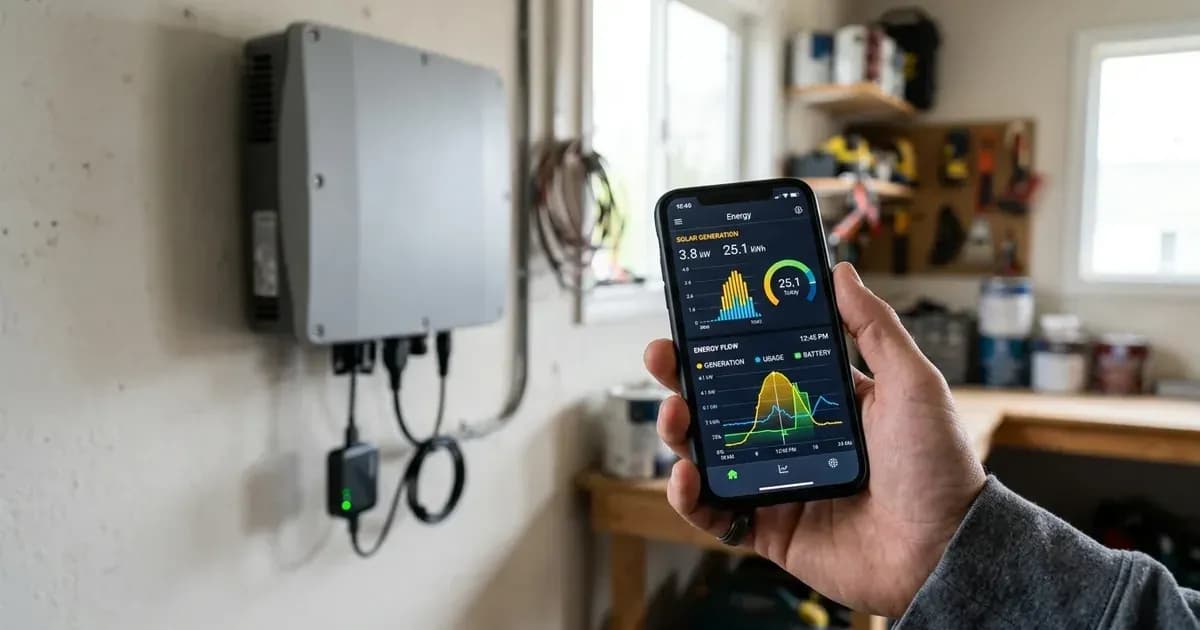
SolarMax inverters, based on the Voltronic Axpert VM III platform, include built-in Bluetooth technology for mobile monitoring. To set this up, you will need to download the "WatchPower" app on your mobile device and pair it with your inverter.
Diagnosis: Checking Your Inverter's Communication Capabilities
Before attempting to set up mobile monitoring or data transfer, confirm the communication options available on your SolarMax inverter.
- Identify Available Wireless Connectivity:
- Check for Bluetooth: SolarMax inverters feature built-in Bluetooth for mobile monitoring. This allows for wireless communication up to 6~7m in an open space.
- Note on Wi-Fi: The manual for SolarMax inverters (Axpert VM III platform) specifies built-in Bluetooth for mobile monitoring and USB for data functions, but does not list Wi-Fi as a direct communication method.
- Locate Communication Ports:
- USB Communication Port: Your inverter is equipped with a USB communication port, which supports OTG USB functions.
- RS-232 Communication Port: An RS-232 communication port is also available, typically used with monitoring software supplied on a CD.
- BMS Communication Port: The inverter includes a BMS communication port, supporting CAN and RS232 or RS485 protocols.
- Verify App Availability:
- "WatchPower" App: The mobile monitoring app is named "WatchPower" and is available on Google Play.
Cause/fix table for communication issues
Symptom detail | Likely cause | Fix |
|---|---|---|
Cannot connect mobile device to inverter wirelessly. | Bluetooth is not enabled on the mobile device or inverter, or device is out of range. | Ensure Bluetooth is active on both devices. Move your mobile device within 6~7m of the inverter in an open space. |
"WatchPower" app does not detect the inverter. | App is not installed correctly, or permissions are not granted. | Download and install the "WatchPower" app from Google Play. Check app permissions on your mobile device. |
USB disk functions (firmware upgrade, data export) fail. | USB disk detection error, disk is write-protected, or document format is incorrect. | Check if "No USB disk is detected." message appears. Ensure the USB disk is not protected from copy if "USB disk is protected from copy." is shown. Verify document format if "Document inside the USB disk with wrong format." is displayed. |
Monitoring software (PC) via RS232 is not working. | Incorrect cable connection or software not installed. | Ensure the RS232 cable is securely connected to the inverter's RS-232 communication port and your PC. Install the monitoring software supplied on CD. |
Setting up Mobile Monitoring and Data Management
Your SolarMax inverter offers several ways to monitor its performance and manage data.
1. Setting up Bluetooth Monitoring with the "WatchPower" App
The most convenient way to monitor your SolarMax inverter remotely is through its built-in Bluetooth functionality and the dedicated mobile application.
- Step 1: Download the App. On your mobile device, open Google Play and search for the "WatchPower" app. Download and install it.
- Step 2: Enable Bluetooth. Ensure Bluetooth is enabled on both your SolarMax inverter and your mobile device. The inverter has built-in Bluetooth technology.
- Step 3: Pair Devices. Open the "WatchPower" app on your mobile device. Follow the in-app instructions to scan for and connect to your SolarMax inverter. The Bluetooth connection is effective up to 6~7m in an open space.
- Step 4: Monitor. Once connected, the app will display real-time data and allow you to monitor your inverter's status.
2. Using USB OTG for Data and Firmware Management
The SolarMax inverter supports USB On-The-Go (OTG) functions, which are useful for maintenance and data retrieval.
- Firmware Upgrade: You can upgrade inverter firmware directly from a USB disk.
- Data Log Export: You can export data logs to a USB disk.
- Parameter Re-write: Re-write internal parameters from a USB disk.
When using USB functions, be aware of potential error messages:
- "No USB disk is detected." indicates the inverter cannot find the USB drive.
- "USB disk is protected from copy." means the USB disk is write-protected.
- "Document inside the USB disk with wrong format." suggests an issue with the file format on the USB disk.
3. Managing Data Log Storage
Your inverter records operational data, and you can configure how long this data is stored.
- Program 94: Data log stored period. This setting allows you to choose how long the inverter retains its data logs. Options include 3 days, 5 days, 10 days (default), 20 days, 30 days, or 60 days. Access this setting via the inverter's LCD panel.
- Program 93: Erase all data log. If you need to clear the stored data, you can use this program. Options are "Not reset" (default) or "Reset".
Important Note: The menu and program numbering on rebadged units, such as SolarMax inverters, can differ by model and firmware. The reader must match settings by NAME rather than by number.
Safety: Essential Precautions for Inverter Interaction
Always prioritize safety when working with your SolarMax inverter or any connected components.
- Read Instructions: Before any operation, read all instructions and cautionary markings on the unit, batteries, and the manual.
- Battery Type: Charge only deep-cycle lead acid type rechargeable batteries. Other types may burst.
- Qualified Personnel: Only qualified personnel can install this device with battery. Only qualified service persons are able to service this device.
- Disconnection: Before any maintenance or cleaning, disconnect all wirings to reduce the risk of electric shock. Simply turning off the unit does not eliminate this risk.
- No Disassembly: Do not disassemble the unit; take it to a qualified service center. Incorrect re-assembly risks electric shock or fire.
- Metal Tools: Exercise extreme caution when using metal tools on or near batteries to prevent sparks, short circuits, or explosions.
- Terminal Disconnection: When disconnecting AC or DC terminals, strictly follow the installation procedure outlined in your manual.
When to call a technician instead
While many monitoring and data management tasks can be performed by the user, certain situations require professional intervention.
- Persistent Communication Failures: If you consistently experience communication issues (Bluetooth, USB, or RS232) despite following all troubleshooting steps, an internal component may have failed.
- Internal Fault Codes: Fault codes such as 08, 09, 53, or 57 indicate internal component failures and require the unit to be returned to a repair center.
- Firmware Update Issues: If a firmware update via USB fails or causes unexpected behavior, contact a qualified service technician.
- Physical Damage: Any physical damage to communication ports or internal components warrants professional inspection and repair.
- Warranty Concerns: Attempting unauthorized repairs or disassembly will void your warranty. For any issues beyond basic setup and troubleshooting, especially those requiring opening the unit, consult a qualified service center.
Still showing the fault? Book a technician
If the steps above did not clear it, tell us the inverter or battery and the exact code. We pass it to a technician who covers your city; visit charges are quoted before they come.
How this pays for the site: the technician or verifier pays SolarNevs a fixed introduction fee. Nobody pays to be recommended, and you are free to use our free guides instead.
Frequently asked questions
Do SolarMax inverters have Wi-Fi connectivity?
SolarMax inverters, based on the Voltronic Axpert VM III platform, feature built-in Bluetooth for mobile monitoring, not Wi-Fi. They also offer a USB communication port and an RS-232 communication port.
What app is used for monitoring SolarMax inverters?
The 'WatchPower' app is available on Google Play for mobile monitoring of SolarMax inverters via Bluetooth connection.
What is the range for Bluetooth monitoring on SolarMax inverters?
The built-in Bluetooth technology allows for wireless communication up to 6~7m in an open space for mobile monitoring.
Can I update my SolarMax inverter's firmware using USB?
Yes, SolarMax inverters support USB OTG functions, which allow you to upgrade inverter firmware, export data logs, and re-write internal parameters from a USB disk.
How long can SolarMax inverters store data logs?
The data log stored period can be configured via Program 94 on the LCD, with options including 3, 5, 10 (default), 20, 30, or 60 days.
References
- Axpert VM III User Manual — accessed 23 August 2026
Related guides
More from inverter errors & fixes.