Sorotec Inverter WiFi Setup for Mobile Monitoring
Updated 7 September 2026 · By SolarNevs Research Desk, Dealer surveys + verified sources · 3 sources · Method ↗
Key Takeaways
- Sorotec inverters, including the REVO VM II PRO and REVO VM V, offer built-in WiFi for mobile monitoring.
- Specific app names and detailed setup instructions are not provided in the available Sorotec product information.
- General WiFi setup involves connecting the inverter to your local wireless network using its built-in module.
- Always ensure all power sources to the inverter are safely disconnected before handling any physical connections or opening access panels.
What is Sorotec Inverter WiFi Monitoring?
Sorotec hybrid solar inverters are designed to provide efficient power management for solar energy systems. Many models include connectivity features, such as WiFi, to allow users to monitor their system's performance remotely. This capability enables real-time tracking of energy production, consumption, and system status directly from a mobile device or computer.
For instance, the Sorotec REVO VM II PRO model features "Built-in Wi-Fi for mobile monitoring." Similarly, the REVO VM V supports "WiFi/Bluetooth/RS485/CAN protocols" for "Real-time monitoring via app with instant fault alerts." This functionality is intended to keep you informed about your solar system's operation and alert you to any issues promptly.
General Steps for Sorotec WiFi Setup
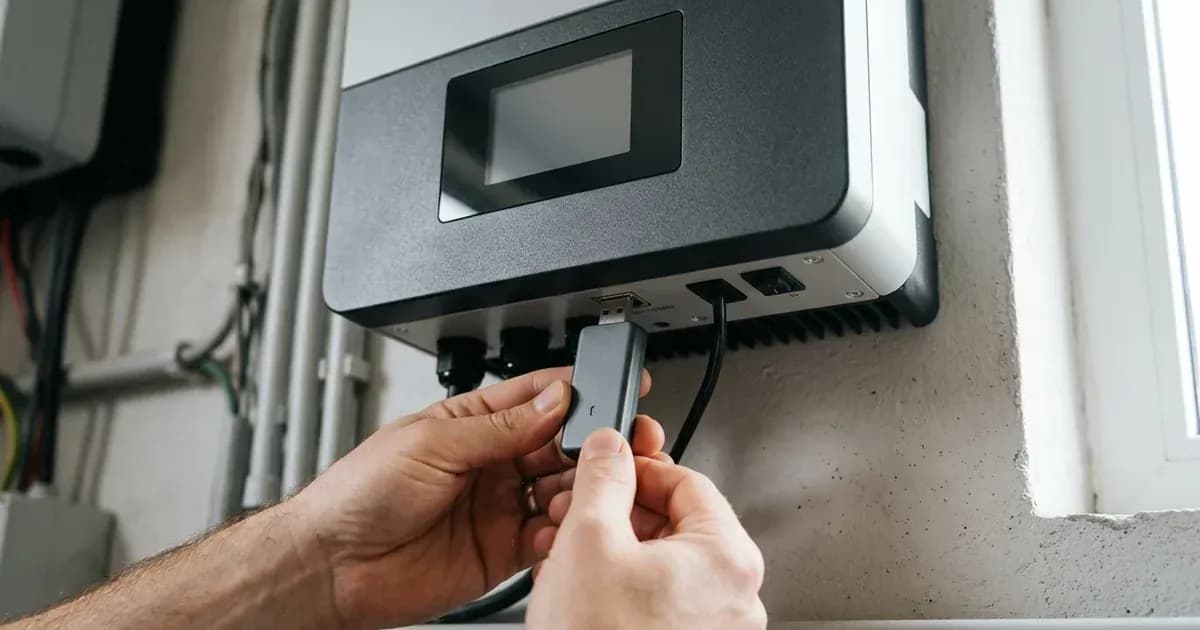
While specific, step-by-step instructions for connecting Sorotec inverters to a WiFi network are not detailed in the available product information, the process typically involves several general steps common to most solar inverters with built-in WiFi. You will need access to your inverter and your local wireless network (router).
- Power On the Inverter: Ensure your Sorotec inverter is fully powered on and operational. The inverter's display should be active.
- Access WiFi Settings: Most inverters with built-in WiFi have a dedicated section in their menu or a physical button to initiate WiFi setup. This might involve navigating through the inverter's display menu using its buttons.
- Connect to the Inverter's WiFi (if applicable): Some inverters create a temporary WiFi hotspot during setup. You would connect your smartphone or computer to this temporary network to configure the inverter.
- Select Your Home/Office WiFi Network: Once connected to the inverter's setup interface (either directly or via its hotspot), you will typically scan for available WiFi networks. Select your local network's name (SSID).
- Enter WiFi Password: Input the password for your local WiFi network. This is crucial for the inverter to join your network.
- Confirm Connection: The inverter should then attempt to connect to your network. A successful connection is usually indicated by a specific icon on the inverter's display or an LED indicator.
- Download and Configure the Monitoring App: For models like the REVO VM V, which support "Real-time monitoring via app," you would then download the manufacturer's designated mobile application. Once installed, you would typically register your inverter using its serial number or a QR code to link it to your monitoring account.
Note on Specifics: The available Sorotec documentation mentions "Built-in Wi-Fi for mobile monitoring" and "Real-time monitoring via app with instant fault alerts" for certain models. However, it does not specify the name of the mobile application, detailed setup procedures, or specific port names for WiFi configuration. You may need to consult the user manual that came with your specific Sorotec inverter model for these details.
Sorotec Inverter Models with WiFi Capability
Several Sorotec inverter models are noted to include WiFi functionality for monitoring:
- REVO VM II PRO: This model explicitly states "Built-in Wi-Fi for mobile monitoring."
- REVO VM V: This inverter "Supports WiFi/Bluetooth/RS485/CAN protocols" and offers "Real-time monitoring via app with instant fault alerts."
If your inverter model is not listed here, refer to its specific product page or user manual to confirm its monitoring capabilities.
Troubleshooting Common WiFi Connection Issues
If you encounter difficulties connecting your Sorotec inverter to your WiFi network, consider these general troubleshooting steps:
Symptom detail | Likely cause | Fix |
|---|---|---|
Inverter cannot find WiFi network | Out of range or poor signal | Move the WiFi router closer to the inverter, or install a WiFi extender. Ensure no large metal objects are blocking the signal path. |
Inverter fails to connect after entering password | Incorrect password or network authentication issue | Double-check the WiFi password for your network. Ensure you are connecting to the correct SSID. Restart your WiFi router. |
Inverter connects but app shows no data | Inverter not registered, or internet connectivity issue | Verify the inverter is correctly registered within the monitoring app. Check your home internet connection. Reboot both the inverter and the router. |
Intermittent connection or data drops | Weak WiFi signal or network interference | Check signal strength near the inverter. Reduce interference from other wireless devices. Consider a wired connection if supported by your model (e.g., RS485/CAN for REVO VM V). |
No WiFi option visible on inverter display | WiFi module not enabled or not present | Consult your inverter's manual to confirm WiFi capability and how to enable it. Ensure the WiFi module is correctly installed if it's an add-on. |
Safety Considerations During Setup
Working with solar inverters involves high voltages and currents. Always prioritize safety during any setup or troubleshooting process.
- Isolate Power: Before making any physical connections or opening any access panels on the inverter, ensure all power sources are isolated. This includes disconnecting the solar PV array, the battery bank, and the AC grid supply.
- Wait for Discharge: After disconnecting power, wait for the inverter's internal capacitors to discharge. The manual for your specific Sorotec model will specify the required waiting time.
- Use Insulated Tools: Always use tools with insulated handles when working with electrical components.
- Avoid Short Circuits: Be extremely careful to prevent accidental short circuits, especially when working with battery terminals. A spanner across a battery bank can short hundreds of amps, causing severe burns or equipment damage.
- Professional Assistance: If you are unsure about any step or uncomfortable working with electrical systems, contact a qualified solar technician.
When to call a technician instead
While basic WiFi setup can often be performed by the user, there are situations where professional assistance is recommended:
- Persistent Connection Issues: If you have followed all general troubleshooting steps and your Sorotec inverter still cannot establish a stable WiFi connection, there may be an internal hardware fault or a more complex network configuration issue.
- No WiFi Option: If your inverter's display or menu does not show any options for WiFi setup, and you have confirmed your model should have this feature, it might indicate a fault with the built-in WiFi module.
- Inverter Malfunction: If the inverter is displaying error codes or behaving abnormally during or after the WiFi setup attempt, it could be a sign of a more serious problem.
- Warranty Concerns: Attempting repairs or modifications not explicitly covered in the user manual could void your inverter's warranty. Sorotec offers a "5-year Warranty" on models like the REVO HES Series 6KW and iHESS L2P G2, and a "5-year extended warranty" on the iHESS L2P G2. Always check your specific model's warranty terms before undertaking any invasive troubleshooting.
For any issues beyond simple network configuration, it is best to contact a certified Sorotec service provider or a qualified solar technician in Pakistan.
Still showing the fault? Book a technician
If the steps above did not clear it, tell us the inverter or battery and the exact code. We pass it to a technician who covers your city; visit charges are quoted before they come.
How this pays for the site: the technician or verifier pays SolarNevs a fixed introduction fee. Nobody pays to be recommended, and you are free to use our free guides instead.
Frequently asked questions
Which Sorotec inverters support WiFi monitoring?
The Sorotec REVO VM II PRO features built-in Wi-Fi for mobile monitoring. The REVO VM V also supports WiFi protocols for real-time monitoring via an app with instant fault alerts.
What information can I monitor with Sorotec inverter WiFi?
Sorotec inverters with WiFi support real-time monitoring and can provide instant fault alerts via a mobile application. Specific details on the types of data displayed are not provided in the available documentation.
Do I need a special app for Sorotec WiFi monitoring?
Sorotec inverters that support WiFi monitoring are designed for real-time monitoring via an app. However, the specific name or source of this application is not detailed in the available Sorotec documentation.
Can I connect my Sorotec inverter to any WiFi network?
Generally, inverters with built-in WiFi connect to standard home or office wireless networks. Ensure your network has a stable signal where the inverter is installed.
What should I do if my Sorotec inverter's WiFi isn't connecting?
First, verify the inverter is powered on and its WiFi module is enabled. Check your local WiFi network for connectivity and signal strength. If issues persist, consult the inverter's user manual for specific troubleshooting steps, as detailed instructions are not available in general Sorotec product information.
References
- Sorotec REVO VM II PRO Product Page — accessed 23 August 2026
- Sorotec REVO VM V Product Page — accessed 23 August 2026
- Sorotec REVO VM IV Product Page — accessed 23 August 2026
Related guides
More from inverter errors & fixes.