Crown Micro Xavier Inverter Communication Options and Monitoring Setup
Updated 6 September 2026 · By SolarNevs Research Desk, Dealer surveys + verified sources · 3 sources · Method ↗
Key Takeaways
- Official manuals for Crown Micro Xavier inverters do not detail WiFi or mobile app setup.
- Some Xavier models offer wired communication ports (RS-232, USB) for PC monitoring.
- The X-3KVA-M model includes bundled PC software for monitoring via wired connection.
- Always refer to your specific inverter's user manual for available communication methods.
How do you set up WiFi or a mobile app for your Crown Micro Xavier Inverter?
The user manuals for Crown Micro Xavier inverters do not provide instructions for WiFi connectivity or mobile application setup. Instead, some models offer wired communication options for PC-based monitoring.
Diagnosis: Checking for Available Communication Options
Since WiFi and mobile app setup are not detailed in the manuals, the primary method for external monitoring involves wired connections to a computer.
- Check your inverter model: Identify your specific Crown Micro Xavier inverter model. The available communication ports vary by model.
- Consult your user manual: Refer to the "SETUP FACTS (WiFi/app/logger)" section of your inverter's manual.
- For the Xavier-1200VA-MPPT and Xavier-2400VA-MPPT models, the manuals state that "No specific app/WiFi/logger setup steps or port names are mentioned in the manual."
- For the Xavier 3KW model, an "RS-232 communication port" is listed.
- For the X-3KVA-M (Xavier 3KVA) model, "USB communication port" and "RS-232 communication port" are listed.
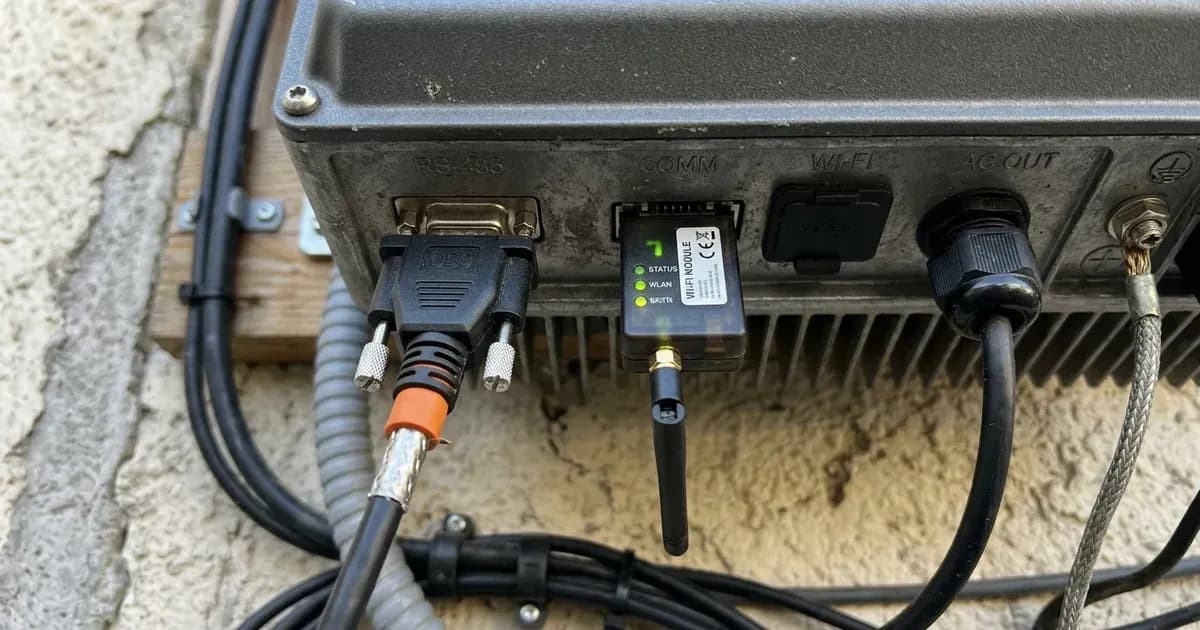
- Look for physical ports: Inspect your inverter for RS-232 or USB ports, typically found on the side or bottom panel.
- Review software availability: For models like the X-3KVA-M, the manual mentions "supplied communication cable to connect to inverter and PC" and "bundled CD into a computer and follow on-screen instruction to install the monitoring software."
Communication Options Overview
Crown Micro Xavier inverters primarily offer wired communication for monitoring, based on the available manuals. There is no information provided for wireless (WiFi) or mobile application connectivity.
Inverter Model | Communication Ports | Software / App Information |
|---|---|---|
Xavier 3KW | RS-232 communication port | No specific software mentioned in manual |
Xavier-1200VA-MPPT | None specified | No specific app/WiFi/logger setup steps or port names are mentioned in the manual. |
Xavier-2400VA-MPPT | None specified | No specific app/WiFi/logger setup steps or port names are mentioned in the manual. |
X-3KVA-M (Xavier 3KVA) | USB communication port, RS-232 communication port | Bundled CD with monitoring software for PC |
Setting up Wired PC Monitoring (X-3KVA-M example)
If you have an X-3KVA-M (Xavier 3KVA) model, you can set up PC monitoring using the provided accessories:
- Connect the cable: Use the "supplied communication cable to connect to inverter and PC."
- Install software: "Insert bundled CD into a computer and follow on-screen instruction to install the monitoring software."
- Follow software instructions: Once installed, use the monitoring software to view inverter status and data.
For other models like the Xavier 3KW with an RS-232 port, you would typically need a compatible RS-232 cable and potentially third-party monitoring software if not provided by Crown Micro. Always ensure any software you use is compatible with your specific inverter model.
For more information on common issues, you can refer to our guides on Crown Micro Xavier Inverter Fault Codes and Crown Micro Xavier Battery Settings.
Safety: Working with Inverter Connections
When working with any inverter, safety is paramount. Disconnecting power sources and using appropriate tools helps prevent electrical shock and damage.
- Disconnect all power: Before attempting any maintenance or connecting communication cables, it is critical to disconnect all power sources. This includes AC, DC, and battery power. Note that 'To reduce risk of electric shock, disconnect all wirings before attempting any maintenance or cleaning. Turning off the unit will not reduce this risk.' For models like the Xavier-1200VA-MPPT and Xavier-2400VA-MPPT, 'Internal capacitors can remain charged for 5 minutes after disconnecting all sources of power.' Always wait this duration before proceeding. Use insulated tools and ensure only qualified personnel perform such tasks, as 'Only qualified personnel can install this device with battery' and 'Warning!! Only qualified service persons are able to service this device.'
- No user-serviceable parts: Many models, such as the Xavier-1200VA-MPPT and Xavier-2400VA-MPPT, state "WARNING! There are no user-replaceable parts inside of the inverter. Do not attempt to service the unit yourself."
When to call a technician instead
If your Crown Micro Xavier inverter is not functioning as expected, or if you are unsure about connecting monitoring equipment, it is best to contact a qualified technician. Attempting to service the inverter yourself, especially for models with "no user-serviceable parts," "may cause a risk of electrical shock or fire and will void the warranty from the Manufacturer." Issues like internal fuse trips or bus voltage problems often require professional intervention, as indicated by manual recommendations such as "Contact repair center for replacing the fuse. Re-charge battery. Replace battery." or "Return to repair center."
Still showing the fault? Book a technician
If the steps above did not clear it, tell us the inverter or battery and the exact code. We pass it to a technician who covers your city; visit charges are quoted before they come.
How this pays for the site: the technician or verifier pays SolarNevs a fixed introduction fee. Nobody pays to be recommended, and you are free to use our free guides instead.
Frequently asked questions
Do Crown Micro Xavier inverters have WiFi connectivity?
The user manuals for Crown Micro Xavier inverters, including the Xavier 3KW, Xavier-1200VA-MPPT, Xavier-2400VA-MPPT, and X-3KVA-M models, do not specify WiFi connectivity or mobile app setup instructions.
How can I monitor my Crown Micro Xavier inverter?
Some Crown Micro Xavier inverter models offer wired communication ports. The Xavier 3KW and X-3KVA-M models feature an RS-232 communication port. The X-3KVA-M also includes a USB communication port and comes with bundled PC monitoring software.
Is there a mobile app for Crown Micro Xavier inverters?
Information regarding a dedicated mobile application for Crown Micro Xavier inverters is not provided in the official user manuals. The manuals focus on physical communication ports for PC-based monitoring where available.
What communication ports are available on Crown Micro Xavier inverters?
The Xavier 3KW and X-3KVA-M models are equipped with an RS-232 communication port. The X-3KVA-M model additionally features a USB communication port for connecting to a personal computer.
Where can I find monitoring software for my Crown Micro Xavier inverter?
For the X-3KVA-M model, the manual states that monitoring software is supplied on a bundled CD. This software is designed to connect to the inverter via the provided communication cable and a PC.
References
- Crown Micro Xavier 3KW User Manual — accessed 23 August 2026
- Crown Micro Xavier 1.2-2.4-M Solar Manual — accessed 23 August 2026
- Crown Micro Xavier 3KVA User Manual — accessed 23 August 2026
Related guides
More from inverter errors & fixes.