Growatt ShineWiFi Offline: Flashing Red LED and App Fix Guide
Updated 18 September 2026 · By SolarNevs Research Desk, Dealer surveys + verified sources · 3 sources · Method ↗
Key Takeaways
- A flashing red LED on a Growatt ShineWiFi datalogger indicates that the unit is in configuration mode or has lost connection to your home router.
- Growatt Wi-Fi dongles connect exclusively to 2.4GHz frequency bands; dual-band routers broadcasting on 5GHz without band separation will reject pairing.
- Inverter solar generation and battery charging operate completely independently of Wi-Fi status, but app telemetry and remote firmware updates require an active link.
- Homeowners can reconfigure the datalogger directly through the ShinePhone mobile app or access internal network settings locally via 192.168.10.100.
Why is my Growatt inverter showing offline in the ShinePhone app?
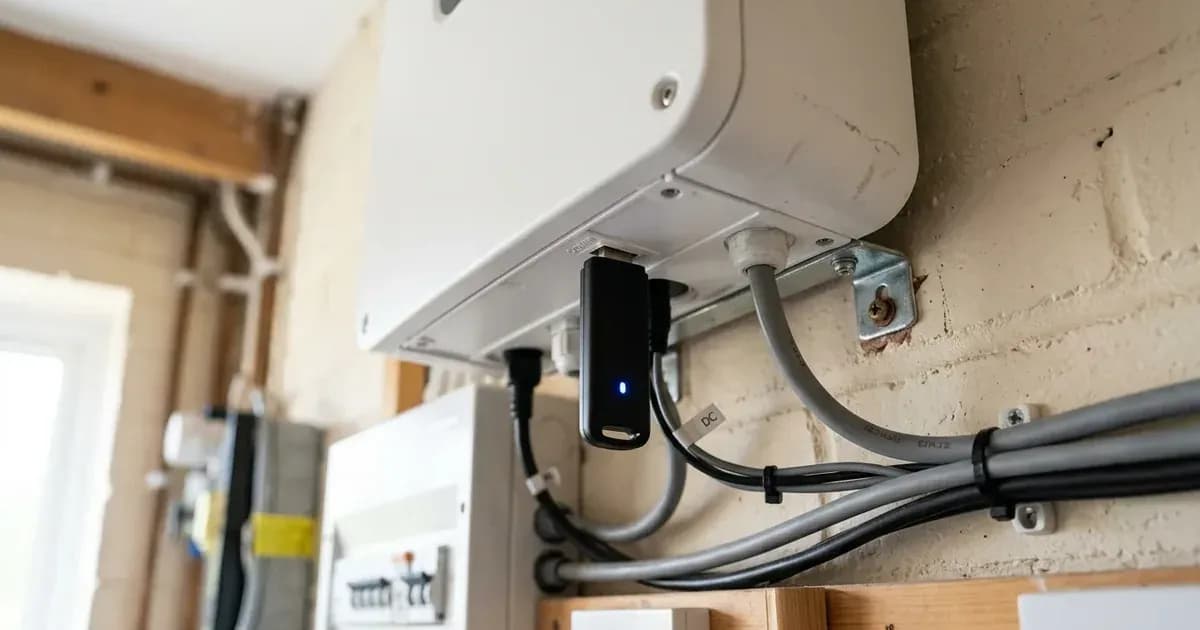
When the ShinePhone mobile app or online web dashboard reports that your Growatt inverter is "Offline", the solar power conversion system is usually generating power normally. The offline notification indicates that the external datalogger—typically a ShineWiFi-X module plugged into the USB port or a ShineWiFi-S module connected via a serial interface—has lost its wireless data link to your broadband router or the cloud servers.
For British homeowners tracking export earnings or battery cycling, reliable telemetry is critical for smart energy billing; see our Smart Export Guarantee guide and UK battery storage fire safety guide.
The diagnostic key is the multi-colour LED indicator located on the casing of the datalogger. By observing the LED flashing pattern, you can distinguish between local Wi-Fi router disconnection, password errors, or physical hardware unseating.
Growatt ShineWiFi LED status decoding
The LED on Growatt ShineWiFi dataloggers conveys three distinct operational states:
LED Indication | Technical Operational State | Underlying System Condition | Required User Action |
|---|---|---|---|
Flashing Red | Initial configuration mode or reset state | Dongle awaiting Wi-Fi pairing or router disconnected | Reconfigure via ShinePhone app or check 2.4GHz router band |
Flashing Green | Local router communication established | Connected to home Wi-Fi network; reaching out to cloud | Await cloud server handshake and routing confirmation |
Flashing Blue | Connected to router and cloud server | Datalogger online and communicating with ShinePhone | Normal operation; telemetry actively uploading |
Off (Dark) | No power to datalogger module | Inverter powered down or USB connector unseated | Confirm dongle is securely inserted and inverter powered on |
Compliance with domestic wiring and auxiliary hardware standards is detailed in our UK solar electrical installation guide.
Step-by-step troubleshooting and reconfiguration protocol
If your datalogger is flashing red or your inverter remains offline in the app, execute the following four-step resolution sequence:
Step 1: Verify hardware seating and power status
Dataloggers draw low-voltage control power directly from the inverter internal communication board:
- Confirm dongle is securely inserted and inverter powered on during daylight hours.
- If the inverter has entered night-time sleep mode, wait until solar generation resumes to begin configuration.
- Insert dongle; wait for flashing red LED to confirm power delivery.
Step 2: Validate home router Wi-Fi band configuration
Broadband routers supplied by UK internet service providers often combine frequency bands:
- Check router: Ensure 2.4GHz band active, signal strength adequate at inverter location.
- Growatt hardware cannot establish communication over a 5GHz network. If your router uses synchronized band steering, temporarily split the networks in router settings or create a dedicated 2.4GHz guest network.
- Ensure router SSID/password contain only letters/numbers (no spaces/special characters), as complex symbols can corrupt internal credentials.
Step 3: Perform a hardware datalogger reset
If router settings were updated or the dongle has hung:
- Locate the small configuration button on the front of the ShineWiFi casing.
- Reset dongle: Press and hold button until multiple colors flash, release; LED should flash red.
- The datalogger will clear prior network credentials and launch its internal setup access point.
Step 4: Reconfigure through the ShinePhone mobile application
Re-pair the datalogger using your smartphone:
- Reconfigure via ShinePhone app in hotspot or standard mode.
- Open the ShinePhone application on a phone connected to your 2.4GHz home network.
- In the app interface, navigate to add equipment and scan QR/barcode on dongle for SN/CC.
- Choose hotspot mode: Connect phone to dongle AP (SSID starts with AP_, password often 12345678).
- Return to app; enter home router SSID/password > Apply > Restart dongle.
- Observe the indicator: confirm LED flashes blue (connected); check app for online status.
For statutory notification standards and inverter operating rules, refer to our micro-generator grid connection guide.
Accessing local settings via 192.168.10.100
If mobile app pairing fails or no internet service is available, you can configure the datalogger directly through its embedded web server:
- Connect your smartphone or laptop Wi-Fi directly to the datalogger hotspot (SSID beginning with AP_).
- Open an internet browser and navigate to the local management portal: accessing Growatt local settings via 192.168.10.100.
- Login: Username admin , default password admin (change after first login).
- Access available tabs for WiFi config, inverter parameters, or diagnostics.
- In the network setup tab, select your home Wi-Fi SSID from the site survey scan, enter the wireless security key, and click Save.
- The datalogger will reboot and attempt a direct handshake with your home broadband router.
Weak Wi-Fi signal and communication range fixes
Inverters mounted externally or in remote garages often struggle with radio frequency attenuation through thick masonry cavity walls:
- Relocate router or install range extenders: Move router closer or use WiFi extender if signal weak between the domestic living space and the inverter location.
- Hardwired datalogger alternative: For locations where wireless signals cannot reliably penetrate, replace the ShineWiFi dongle with a hardwired Growatt ShineLAN module connected via standard Ethernet cabling.
Safety: communication hardware precautions
While Wi-Fi dataloggers operate on safe extra-low voltage control circuitry, working around solar equipment requires fundamental safety awareness:
- Never access internal high-voltage terminals: Dataloggers plug directly into external USB or DB9 sockets on the underside of the chassis. Never open the main inverter enclosure to adjust communications.
- Do not force connectors: Align the internal orientation pins carefully before tightening the outer locking collar to prevent bent pins or short-circuiting the communication bus.
When to contact an MCS-certified technician
Homeowners can independently configure Wi-Fi dongles, enter router passwords, and operate the ShinePhone mobile app. However, if the inverter USB communication port fails to supply power or internal communication errors arise, professional assistance is required.
Escalate to your installer or contact official technical support at service@growatt.tech under these circumstances:
- The datalogger LED remains dark: If the LED does not illuminate when plugged into an active inverter, the internal low-voltage communication power rail may have failed.
- Continuous dongle rebooting: If the LED repeatedly cycles between colors every few seconds without stabilizing, the datalogger firmware may be corrupted.
- Inverter screen reports communication error: If the inverter display shows an internal communication fault, the motherboard port requires testing.
Frequently asked questions
Why is my Growatt ShineWiFi dongle flashing red?
A continuously flashing red LED indicates that the datalogger is in initial configuration mode or has lost communication with your home Wi-Fi router. Solar generation continues, but data telemetry to the ShinePhone app is halted.
Why won't my ShineWiFi dongle connect to my home broadband router?
Growatt Wi-Fi dataloggers require an active 2.4GHz Wi-Fi band. If your home router only broadcasts a 5GHz network, has a weak signal at the inverter location, or uses unsupported special characters in the network password, connection will fail.
How do you reset a Growatt ShineWiFi-X datalogger?
Press and hold the physical button on the front of the dongle until multiple colors flash across the LED indicator, then release. The LED will return to flashing red, ready for hotspot reconfiguration.
What does a flashing blue LED mean on a ShineWiFi dongle?
A flashing blue LED confirms that the datalogger has successfully connected to your home router, obtained an IP address, and established stable communication with the Growatt cloud server.
References
- Growatt Technical Support: WiFi Dongle Flashing Red Troubleshooting — accessed 29 August 2026
- Growatt Technical Support: ShineWiFi-X Step-by-Step Configuration Guide — accessed 29 August 2026
- Growatt Technical Support: Accessing Local Settings via 192.168.10.100 — accessed 29 August 2026
Related guides
More from inverter errors & fixes.