GivEnergy Wi-Fi Dongle Offline: How to Reconnect and Fix Status Lights
Updated 18 September 2026 · By SolarNevs Research Desk, Dealer surveys + verified sources · 4 sources · Method ↗
Key Takeaways
- An offline GivEnergy inverter almost always stems from home broadband changes, weak 2.4GHz Wi-Fi coverage, or a loose USB dongle collar.
- A healthy, fully operational connection is indicated when the dongle is emitting a solid blue light.
- Never remove the inverter bottom wiring cover while mains AC is live; isolate AC and DC power before handling any internal data terminals.
- If broadband is functioning normally but the dongle LED remains unlit, escalate to your installer or GivEnergy support to inspect the USB port.
Why is my GivEnergy inverter showing offline in the app?
When the GivEnergy mobile application or online portal displays an inverter as offline or reports that a data point was not created recently, the communication bridge between your inverter and the cloud servers has broken down. In the vast majority of UK domestic installations, the inverter itself continues generating solar power and cycling the battery; however, remote monitoring, automated tariff switching, and energy telemetry cease reporting.
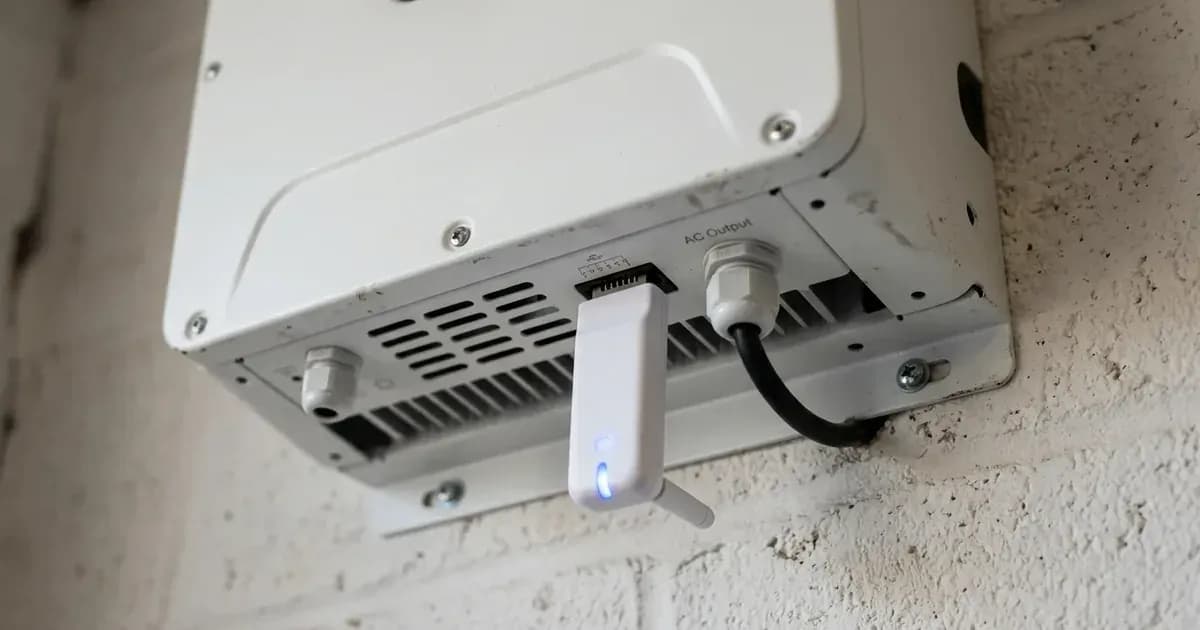
The physical communication hardware consists of a black external USB dongle that attaches to the underside of the inverter chassis. GivEnergy provides both Wi-Fi and 4G cellular variants. The official technical guidance states: ensure that the dongle is emitting a solid blue light and that it has a stable internet connection.
If your broadband provider updates your router, changes your wireless network name (SSID), or switches the security encryption to a standard incompatible with the dongle, the unit loses synchronization and stops uploading 5-minute telemetry intervals.
For automated export settlement and smart metering requirements, see our guide to Smart Export Guarantee metering rules.
Diagnostic steps: How to restore your dongle connection
Follow this structured workflow to diagnose and reconnect an offline dongle:
- Observe the Dongle LED: Look directly at the clear indicator lens on the dongle body. If the blue light is flashing slowly, the dongle is searching for your router. If it is flashing rapidly, it is attempting cloud server handshake. If it is dark, verify physical USB connection.
- Check Router 2.4GHz Band: Domestic Wi-Fi dongles operate strictly on the 2.4GHz frequency band. If your dual-band router combines 2.4GHz and 5GHz under one SSID, temporarily split them or disable 5GHz during setup.
- Inspect the Physical USB Port: On Generation 2 and Generation 3 units, locate the USB port on the bottom plate. Ensure the threaded collar is finger-tight and fully seated.
- Reseat 4G SIM Cards: For cellular dongles, ensure the Sim Card is inserted correctly in to the dongle before powering up.
- Re-pair via the Mobile App: Open the GivEnergy mobile application, select Add Inverter, scan the barcode label on the dongle body, and enter your home broadband password.
For public building and telemetry monitoring protocols, consult our schools solar energy telemetry guide.
Dongle status codes and troubleshooting table
The table below outlines common telemetry fault modes and their manufacturer-documented solutions:
Status / Message | Probable Cause | Remediation Procedure |
|---|---|---|
Data Point was not created recently | Wi-Fi dropped or router disconnected | Ensure that the dongle is emitting a solid blue light and that it has a stable internet connection |
Dongle LED dark / unlit | Loss of power from inverter USB port | Power down system, reseat USB dongle, and power on |
Dongle flashing blue continuously | Router connected but cloud handshake blocked | Check firewall ports on home broadband router |
4G cellular data offline | SIM card misaligned or expired carrier data | Ensure the Sim Card is inserted correctly in to the dongle |
Remote firmware update unavailable | Missing USB local storage drive | It is vital that the USB stick is fitted to the port to allow for remote firmware updates in the future |
Inverter hardware interfaces and firmware baselines
The physical connection point depends on your inverter generation:
- Generation 3 Inverters: Feature a dedicated external port: USB Port for 4G Module (optional), alongside built-in Wi-Fi aerial connectors.
- Generation 2 Inverters: Feature bottom-mounted ports: USB port for WiFi/4G dongle.
- Firmware Baselines: Advanced telemetry and comms routing are defined in manufacturer specifications: GEN 2 data connections Applicable for firmware version 902 or above, and GEN 3 data connections Applicable for firmware version 902 or above.
- Port Identification Labels: Each unit carries a factory sticker: WiFi Serial No. and Verification Code, required for cloud registration.
For comprehensive UK domestic wiring and safety standards, review our UK solar electrical installation guide.
Safety: USB port handling and electrical isolation
Although the USB dongle operates at low voltage, its physical location beside high-power electrical terminals demands strict safety precautions:
- High Voltage Proximity: The external USB port sits directly adjacent to mains AC grid terminals and high-voltage solar DC inputs. Never open terminal cover plates while the inverter is energised.
- Power Isolation: If you must remove or replace a damaged USB socket or re-terminate communication wiring, isolate the AC breaker and the DC solar array switch first to eliminate shock hazards.
- Portal Commissioning Security: When accessing system parameters, sign in with your GivEnergy login, and sign in as an engineer - if first time use and if you do not yet have an engineer login, contact your approved installer.
When to contact GivEnergy support
Maintaining an active internet connection is not merely a convenience; it is a binding warranty obligation.
GivEnergy provides a 12-year warranty on inverters from the installation date. However, the manufacturer warranty terms state that if the unit remains offline for more than 10% of time from the date of installation, the warranty may revert to a 12-month standard warranty from the date of commission. If your dongle refuses to emit a solid blue light after multiple reboots, contact GivEnergy technical support on 01377 252 874 or consult your certified installer.
Frequently asked questions
What does a solid blue light on the GivEnergy dongle mean?
A solid blue light confirms that the dongle has established a stable connection to your home router and the GivEnergy cloud server. If the light flashes or turns off, the unit has lost network communication.
How do I fix 'Data Point was not created recently' on the GivEnergy portal?
This error indicates a telemetry timeout between your inverter and the cloud. Ensure that the dongle is emitting a solid blue light and that it has a stable internet connection before checking router 2.4GHz Wi-Fi settings.
Where is the Wi-Fi dongle plugged in on a GivEnergy inverter?
On Generation 2 and Generation 3 inverters, the dongle screws into a dedicated USB port located on the underside of the inverter casing, protected by a threaded compression collar.
Can an offline inverter void my GivEnergy warranty?
Yes. GivEnergy warranty terms state that if the system remains offline for more than 10% of time from installation date, warranty coverage may revert to a 12-month standard warranty from the date of commission.
References
- GivEnergy Commissioning Portal Fault Codes and Recommendations — accessed 29 August 2026
- GivEnergy Installer Training Manual V14 — accessed 29 August 2026
- GivEnergy Generation 3 Hybrid Inverter Installation Manual — accessed 29 August 2026
- GivEnergy Residential Product Warranty Document — accessed 29 August 2026
Related guides
More from inverter errors & fixes.