SolaX Pocket WiFi Dongle Offline: Connection and Setup Guide
Updated 18 September 2026 · By SolarNevs Research Desk, Dealer surveys + verified sources · 2 sources · Method ↗
Key Takeaways
- SolaX Pocket WiFi sticks operate on 2.4 GHz Wi-Fi frequencies; they cannot communicate with routers broadcasting exclusively across 5 GHz bands.
- The first check when an inverter drops offline is determining whether the dongle STAT LED is blinking rapidly, glowing solid, or dark.
- Always observe inverter safety rules when handling communication hardware: ensure all power has been turned off at least 5 minutes prior to installation or physical reseating.
- If the SolaxCloud smartphone app fails to pair automatically, use a web browser to access the manual setup gateway at 192.168.10.10 (or 5.8.8.8 on older models).
Why is my SolaX inverter showing offline in the app?
When the SolaxCloud app reports an inverter as offline, solar generation continues locally in the background, but real-time telemetry, historical yield tracking, and remote battery scheduling stop uploading to cloud servers. In the UK, where accurate export monitoring is critical for qualifying under Smart Export Guarantee metering rules, maintaining continuous data logging is vital.
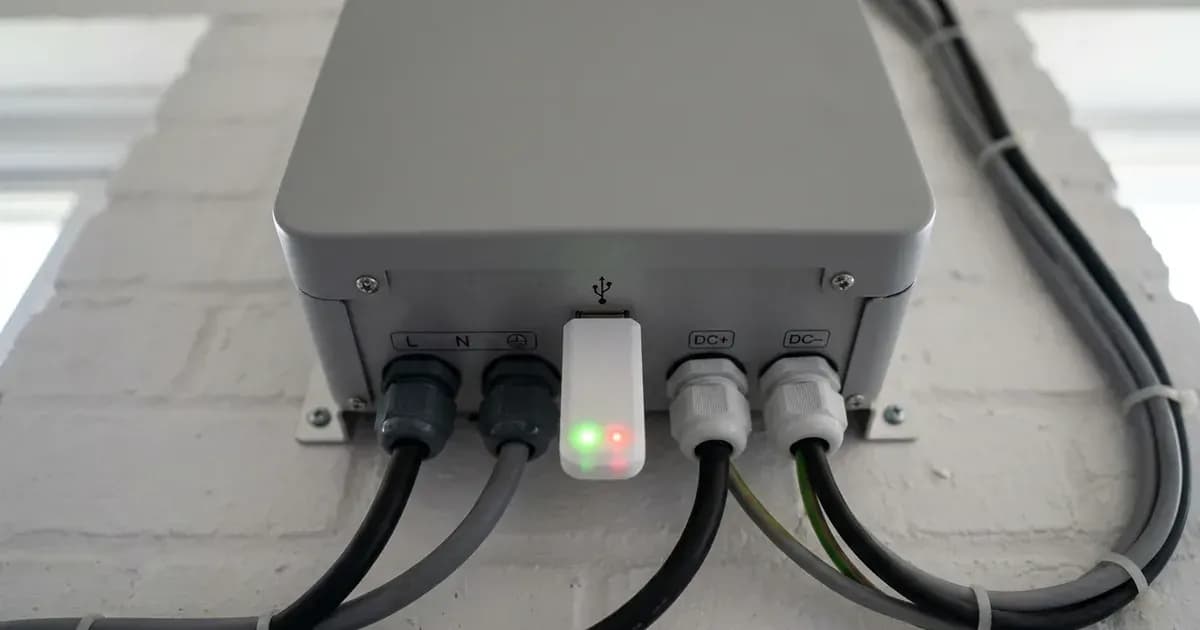
The hardware responsible for this telemetry link is the SolaX Pocket WiFi module, typically the Pocket WiFi V3.0 (-P/-E) or legacy Pocket WiFi V2.0. These compact IP65 communication sticks plug into the dedicated DONGLE port on the inverter base.
Most communication failures do not indicate broken inverter electronics. Instead, they stem from broadband router replacements, Wi-Fi password updates, mesh network band steering, or weak radio signal transmission across thick masonry walls. For compliant wiring practices around domestic generation systems, see our UK solar electrical installation guide.
Hardware radio specifications and network requirements
To establish a durable network connection, your home broadband router must align with the manufacturer radio specifications:
- Operating Frequency: 802.11 b/g/n pocket wifi v3.0 (-p/-e) 5v dc 2.4 ghz 3 dbi. The module contains an integrated 2.4 GHz transceiver with 3 dBi antenna gain.
- 5GHz Incompatibility: Official engineering manuals specify: *5GHz Wi-Fi is unavailable for now. If your home broadband router uses combined single-SSID dual-band transmission, you must temporarily split the 2.4 GHz and 5 GHz networks or disable 5 GHz during commissioning.
- Supply Voltage: The communication port provides a regulated 5V DC supply directly from the inverter control board.
Pre-installation and handling safety
When installing, removing, or reseating a Pocket WiFi dongle, follow manufacturer safety precautions:
- Mandatory Power-Off Window: Ensure all power has been turned off at least 5 minutes prior to installation. Never plug or unplug communication dongles while internal power conversion stages remain energized.
- Locating Dongle Slot: Remove the cover of DONGLE port at the bottom of the inverter. Ready to install your Pocket WiFi. Align the mechanical orientation buckle carefully and tighten the securing collar to maintain the IP65 environmental seal.
Method 1: SolaxCloud app quick connection
For initial installation or straightforward router re-pairing, use Method1: APP Quick Connection:
- Open the SolaxCloud App on your iOS or Android smartphone.
- Navigate to the Account page and tap Wi-Fi Connection.
- Type in or scan the Registration No. printed on the dongle barcode sticker.
- Agree to join the temporary network broadcast by the Pocket WiFi.
- Select your home 2.4 GHz Wi-Fi network from the discovered list, enter your router Wi-Fi password, and confirm settings.
Method 2: Manual web browser gateway connection
If mobile application auto-discovery fails due to phone operating system permissions, follow Method2: Wi-Fi Manual Connection using any smartphone, tablet, or laptop:
Step 1: Discover dongle access point
Step 1: Use a laptop/smartphone to search for the inverter Wi-Fi signal from the Pocket WiFi. (SSIDL: Wifi_Sxxxxxxxxx).
Step 2: Connect to the AP
Step 2: Connect to the inverter Wi-Fi signal. If prompted for a password, enter the device Registration Number.
Step 3: Open browser gateway IP
Step 3: Open a browser (Internet Explorer, Firefox or Chrome) and type in 192.168.10.10 or 5.8.8.8(192.168.10.10 is for the dongle version which is higher than 3.0, 5.8.8.8 is version lower than 3.0).
Step 4: Enter administrative credentials
Step 4: Type in username "admin" and password. (Username: admin; Initial password depends on the Registration No. of your device. For the SWxxxxxxxx , initial password is admin ; For other Sxxxxxxxxx , initial password is same as the Registration No .).
Step 5: Configure router DHCP
Step 5: Enter the DHCP setting page. 5.1: Connect to your new home router's Wi-Fi by clicking 'Find AP' (or by manually inputting the home router's SSID). 5.2: Input the home router's password as the 'Key'. 5.3: Click 'Save'.
Step 6: Verify network IP assignment
Step 6: Connect the inverter's wifi again re-enter 192.168.10.10 or 5.8.8.8 and see if the IP address shows. Once an IP address is assigned by your home router, the dongle STAT indicator will stabilize, confirming successful connection.
Troubleshooting fallback steps
If the dongle refuses to connect to the router after following both methods, apply the following diagnostic tests:
- Try an Alternative Mobile Device: Troubleshooting steps: 1. Try with another mobile device to do the app quick connection again.
- Mobile Hotspot Isolation Test: 2. Try use mobile phone hotspot to do the manual wifi connection again. Configuring the dongle to connect to a temporary mobile phone hotspot isolates whether the problem lies with the home broadband router firewall or the dongle hardware.
- Inverter Registration Number Validation: Check Registration No. on inverter LCD, if it same as Pocket WiFi? Path:Menu-About. If the registration number stored on the inverter motherboard does not match the serial label on the dongle, the device cannot bind to SolaxCloud.
- Direct Local Mode Access: Homeowners can still monitor generation locally without broadband: Use your smart phone to connect the SolaX Wi-Fi signal (Wifi_SWxxxxxxxx). Then touch Local and type in password (initially same as the Registration No.) to access the Local Mode in the Monitoring App.
Connection symptom triage matrix
LED / App Symptom | Underlying Root Cause | Corrective Action |
|---|---|---|
Dongle STAT LED completely unlit | Loose connection or damaged 5V DC port | Isolate power; wait 5 mins; reseat dongle in port |
AP Wifi_Sxxxxxxxxx does not appear | Dongle still booting or disabled RF | Power cycle inverter; inspect external antenna connection |
Browser cannot reach 192.168.10.10 | Device connected to home Wi-Fi instead | Reconnect device directly to dongle AP; verify IP format |
App shows offline; STAT LED solid green | Router blocking cloud outbound ports | Check broadband router firewall; allow SolaxCloud telemetry |
Hotspot connects successfully; router fails | Router 5GHz steering or special characters | Separate 2.4GHz SSID; remove punctuation from Wi-Fi password |
Active telemetry ensures your export revenue is properly tracked under Smart Export Guarantee tariffs.
Frequently asked questions
Why is my SolaX Pocket WiFi dongle showing offline in SolaxCloud?
Offline status typically occurs when home broadband details change, the router dual-band steering forces the dongle onto an unsupported 5GHz band, or the local IP gateway disconnects. Prior to removing or reseating the dongle, ensure power to the inverter has been cut off for at least five minutes.
Does the SolaX Pocket WiFi support 5GHz home Wi-Fi networks?
No. SolaX Pocket WiFi modules operate exclusively on 2.4 GHz 802.11 b/g/n radio frequencies, and 5GHz Wi-Fi is strictly unavailable.
What is the default IP address to configure a SolaX Pocket WiFi dongle?
Connect your laptop or smartphone to the dongle AP (SSID Wifi_Sxxxxxxxxx) and enter 192.168.10.10 in a browser for dongle versions 3.0 and higher, or 5.8.8.8 for versions lower than 3.0.
What are the default login credentials for the SolaX dongle web interface?
The default username is admin. For SW serial prefixes, the password is admin, while for standard S serial prefixes, the initial password matches the Registration Number printed on the dongle label.
References
- SolaX Pocket WiFi V3.0 User Manual — accessed 29 August 2026
- SolaX Help Center: Pocket wifi dongle connection — accessed 29 August 2026
Related guides
More from inverter errors & fixes.