Solar Inverter Offline: UK Wi-Fi Dongle Troubleshooting and Reconnection Guide
Updated 18 September 2026 · By SolarNevs Research Desk, Dealer surveys + verified sources · 5 sources · Method ↗
Key Takeaways
- An offline app status does not stop solar generation; it indicates that the datalogger stick has lost its wireless data link to your local broadband router or cloud monitoring portal.
- Solar monitoring sticks operate on the 2.4 GHz frequency band; attempting to connect to modern 5GHz networks causes immediate connection failure.
- The most common triggers are router password changes, British ISP router band-steering updates, or firewall restrictions blocking telemetry ports 80, 443, or 5279.
- Always ensure hands and equipment are dry before interacting with outdoor dongles, and never dismantle inverter electrical covers during troubleshooting.
Why is your solar inverter showing offline in the app?
Few things cause more immediate concern than opening your solar monitoring app to discover that your system is reported as "Offline" or "Disconnected".
In the vast majority of cases, the solar panels and inverter are operating perfectly. The phenomenon occurs where the inverter or plant status shows Offline in the ShinePhone app, despite the system operating normally. The inverter continues converting solar direct current into household electricity, but generation data cannot reach cloud servers because the communication bridge has collapsed.
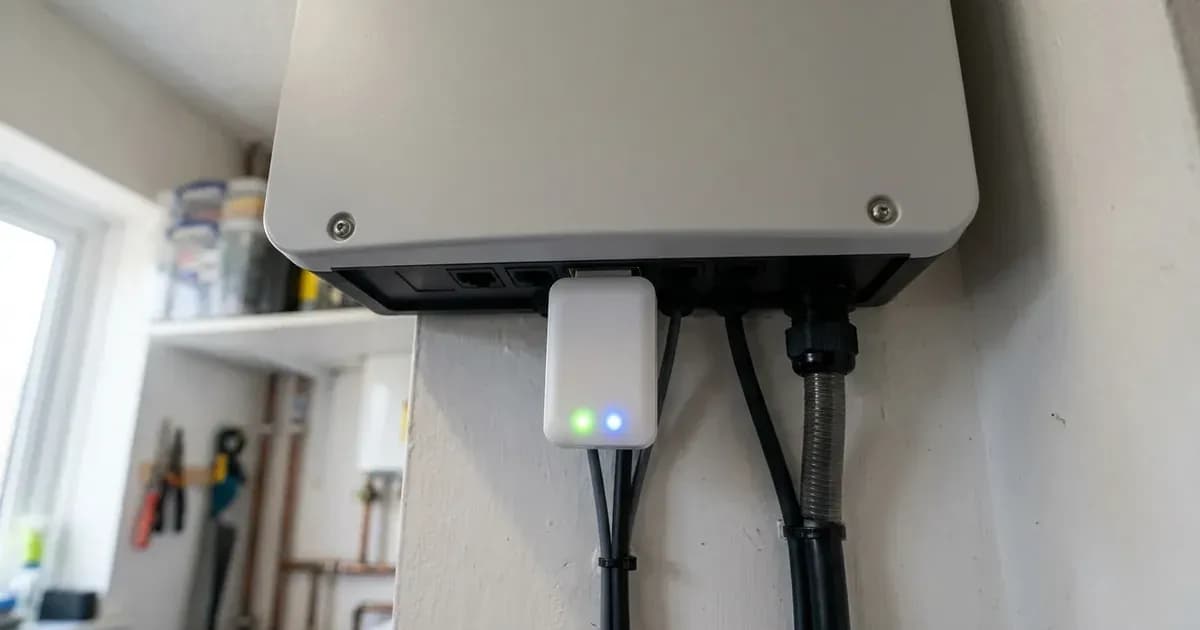
Across UK domestic installations, the datalogger hardware interfaces with your home network via an external plug-in stick attached to an underside port. If your broadband gateway reboots or alters network security protocols, telemetry drops out.
Manufacturer / Stick | Typical Offline Indication | Root Diagnostic Cause |
|---|---|---|
Growatt ShineWiFi-X | Continual flashing red LED | "Phenomenon: The WiFi dongle LED flashes red continuously. No data upload to ShinePhone app; inverter may show offline." https://growatt.tech/2025/12/19/growatt-wifi-dongle-flashing-red/ |
Solis DLS-W Logger | Offline in SolisCloud | "trying to connect to 5ghz signal (solis dls-w only supports 2.4 ghz signals)" https://solis-service.solisinverters.com/en/support/solutions/articles/44002437876-dls-w-solis-wifi-stick-troubleshooting-old-version- |
SolaX Pocket WiFi | Red / unlit LED on stick | "*5GHz Wi-Fi is unavailable for now." https://www.solaxpower.com/uploads/file/pocket-wifi-user-manual-en.pdf |
Sunsynk Data Logger | Offline on Sunsynk Connect | "Insert the Data Logger into the DB9 interface of the inverter" https://support.sunsynk.com/support/solutions/articles/103000400840-connecting-to-the-internet |
The three primary failure mechanisms
Understanding why monitoring links disconnect simplifies recovery:
1. Dual-band router steering and 5GHz incompatibility
Standard solar monitoring sticks operate strictly on 2.4 GHz wireless networks. In SolaX specifications, *5GHz Wi-Fi is unavailable for now. Similarly, Solis documentation highlights failures from trying to connect to 5ghz signal (solis dls-w only supports 2.4 ghz signals).
Modern British ISP routers (such as BT Smart Hub 2, Sky Broadband Hub, and Virgin Media Hubs) combine 2.4GHz and 5GHz signals under a single network name (SSID) using automated band steering. When the router attempts to steer the solar dongle onto the 5GHz frequency, the dongle disconnects and cannot re-authenticate.
2. Network credentials and special character errors
If you have recently upgraded your broadband router or changed your Wi-Fi password, the dongle loses access. Common failure modes include:
- Failed connection to router (wrong password, weak signal, or 5GHz network).
- In Solis diagnostics: router password is incorrect.
- Complex router passwords with punctuation marks: manufacturers recommend to ensure router SSID/password contain only letters/numbers (no spaces/special characters).
3. Weak radio-frequency signal and brick wall attenuation
Solar inverters are frequently installed in garages, basements, or external utility walls. Radio signals attenuate significantly through double-brick cavity walls. If router signal strength is low, drops occur regularly. Solis requires that installers verify the rssi (signal strength) is higher than 15% for stable telemetry. If signal drops below 15%, you must move router closer or use WiFi extender if signal weak.
Decoding your dongle LED status lights
Before changing router settings, read the status indicator lights on your dongle:
- Growatt ShineWiFi: Check datalogger LED: Solid blue = connected to server; flashing blue = connected to router but not server; red = no router connection.
- Flashing Red: Phenomenon: The WiFi dongle LED flashes red continuously. No data upload to ShinePhone app; inverter may show offline. This indicates the dongle in initial configuration mode or reset state.
- Unlit LEDs: If all LEDs are dark, confirm dongle is securely inserted and inverter powered on, and check whether dongle not communicating properly with inverter.
Step-by-step reconnection procedure
Follow this universal troubleshooting workflow to restore cloud telemetry:
Step one: Verify router band settings
Log into your broadband router settings. Check router: Ensure 2.4GHz band active, signal strength adequate at inverter location. If your router uses combined band steering, temporarily split the networks or enable a dedicated 2.4GHz Guest / IoT network.
Step two: Verify firewall exceptions
Occasionally, updated router security firewalls block outgoing telemetry data: router has a firewall blocking the data. Ensure router allows outbound connections on ports 80, 443, and 5279 for Growatt systems. For Solis dataloggers, verify outbound traffic to server ip: 47.88.8.200 on port: 10000 using transport protocol udp.
Step three: Perform a hardware button reset
If the dongle refuses connection, reset the internal network cache:
- On Growatt modules: Reset dongle: Press and hold button until multiple colors flash, release; LED should flash red.
- On Solis sticks: press the button for 5 seconds to reset.
Step four: Connect to the local setup web portal
Most solar dongles broadcast an internal configuration Wi-Fi network when in setup mode:
- Sunsynk: To connect the data logger to the Wi-Fi you need to go to the Wi-Fi setting on your device and search for it. You will see an available connection with the SSID ‘EAP-*’ (‘*’ are the last 5 digits of the serial number on the data logger). Authenticate using 1. Select the correct connection and then enter the password 12345678. Open the internet browser on the same device and search the IP address 10.10.10.1.
- Growatt: Access configuration by accessing Growatt local settings via 192.168.10.100. Authenticate with Login: Username admin , default password admin (change after first login).
- Solis: Connect phone to the stick AP, then go to the web browser and go to 10.10.100.254 and password is admin:admin.
- SolaX: In Step 3: Open a browser (Internet Explorer, Firefox or Chrome) and type in 192.168.10.10 or 5.8.8.8(192.168.10.10 is for the dongle version which is higher than 3.0, 5.8.8.8 is version lower than 3.0).
Once in the web portal, scan for your 2.4GHz home Wi-Fi network, input your network password, and save settings. The stick will reboot and display a solid blue cloud link.
Step five: Check for firmware obsolescence
If the dongle connects to your local router but persistently fails server upload, wifi datalogger firmware is out of date. Contact your inverter brand technical support to push an over-the-air firmware update.
Safety rules: communication port maintenance
- Confirm dongle is securely inserted and inverter powered on before attempting pairing.
- On Sunsynk hardware, always insert the Data Logger into the DB9 interface of the inverter and insert the two screws that come with the Data Logger trough the holes and then tighten them with a Phillips screwdriver to maintain weather seals.
- Never remove the lower electrical cover of the inverter to access communication ports; USB and DB9 sockets are externally accessible.
- If a Wi-Fi stick casing is cracked, wet, or damaged, disconnect all power before handling to prevent moisture ingress hazards.
Frequently asked questions
Why is my solar inverter showing offline in the app when it is generating power?
Your inverter continues generating solar electricity even when offline. The offline status simply means the communication dongle has lost its link to your home broadband router or cloud servers due to router reboots, 5GHz band steering, or weak Wi-Fi signal.
Can solar Wi-Fi dongles connect to a 5GHz home broadband network?
No. Standard solar monitoring dongles operate exclusively on 2.4 GHz wireless networks. Modern UK dual-band broadband routers combining 2.4GHz and 5GHz under one network name frequently reject or drop solar Wi-Fi sticks unless bands are split.
What do the LED indicator lights on a solar Wi-Fi stick mean?
While colours vary by brand, a solid blue light generally indicates full cloud connection, a flashing blue light means connected to the router but not the server, and a flashing red light indicates failed connection to the local router or wrong password.
How do I safely reset a solar Wi-Fi dongle?
To reset, hold the hardware button on the dongle for 5 seconds until the status LEDs flash, then release. Never disassemble live inverter terminals or force the communication port while wet.
References
- Growatt Technical Support: Why is my Growatt Inverter Offline Diagnostics — accessed 29 August 2026
- Growatt Technical Support: WiFi Dongle Flashing Red Troubleshooting — accessed 29 August 2026
- Solis Service Center: DLS-W WiFi Stick Troubleshooting Guide — accessed 29 August 2026
- Sunsynk Technical Support: Connecting to the Internet Guide — accessed 29 August 2026
- SolaX Help Center: Pocket WiFi Dongle Connection Guide — accessed 29 August 2026
Related guides
More from inverter errors & fixes.