GoodWe SEMS Portal and Inverter WiFi Setup Guide
Updated 6 September 2026 · By SolarNevs Research Desk, Dealer surveys + verified sources · 3 sources · Method ↗
Key Takeaways
- The GoodWe SEMS Portal provides online monitoring for your solar system.
- Initial WiFi setup for ET and ES series inverters requires connecting to a specific access point with the password
12345678. - GoodWe ET and ES inverters use the PV Master app; A-ES inverters use the SolarGo app.
- Always ensure all power sources are disconnected and wait 5 minutes before handling internal components or communication modules.
- If basic troubleshooting fails, contact a qualified technician or GoodWe support.
How do you set up your GoodWe inverter for SEMS Portal monitoring?
Setting up your GoodWe inverter for SEMS Portal monitoring involves connecting the inverter to your local Wi-Fi network. Once connected, the inverter transmits data to the SEMS Portal, which is an online monitoring system accessible via www.semsportal.com or a mobile app. This allows you to track your solar system's performance, energy production, and consumption.
The process typically involves connecting your smartphone or computer directly to the inverter's Wi-Fi access point, then configuring it to join your home or business Wi-Fi network. This enables the inverter to send data to the cloud-based monitoring platform.
Connecting your GoodWe Inverter to WiFi
This section outlines the steps to connect your GoodWe ET, ES, or A-ES series inverter to your local Wi-Fi network. The specific app and initial Wi-Fi credentials vary by inverter series.
For GoodWe ET and ES Series Inverters (using PV Master app):
- Download the PV Master App: Download the PV Master app to your smartphone or tablet. This app is available for both Android and iOS devices.
- Locate Inverter Wi-Fi Access Point: On your smartphone or computer, search for available Wi-Fi networks. You should find a network named
Solar-Wi-Fi*, where*represents the last 8 characters of your inverter's serial number. - Connect to Inverter Wi-Fi: Connect to the
Solar-Wi-Fi*network. The initial Wi-Fi AP password for GoodWe ET and ES series inverters is12345678. - Access Web Interface (Optional): If using a computer, you can access the inverter's web interface by opening a web browser and navigating to
10.10.100.253. - Configure Network Settings: Open the PV Master app or the web interface. Navigate to the network settings section. Here, you will select your local Wi-Fi network (SSID) and enter its password.
- Save Settings and Restart: Save the new network settings. The inverter may restart its Wi-Fi module to connect to your local network.
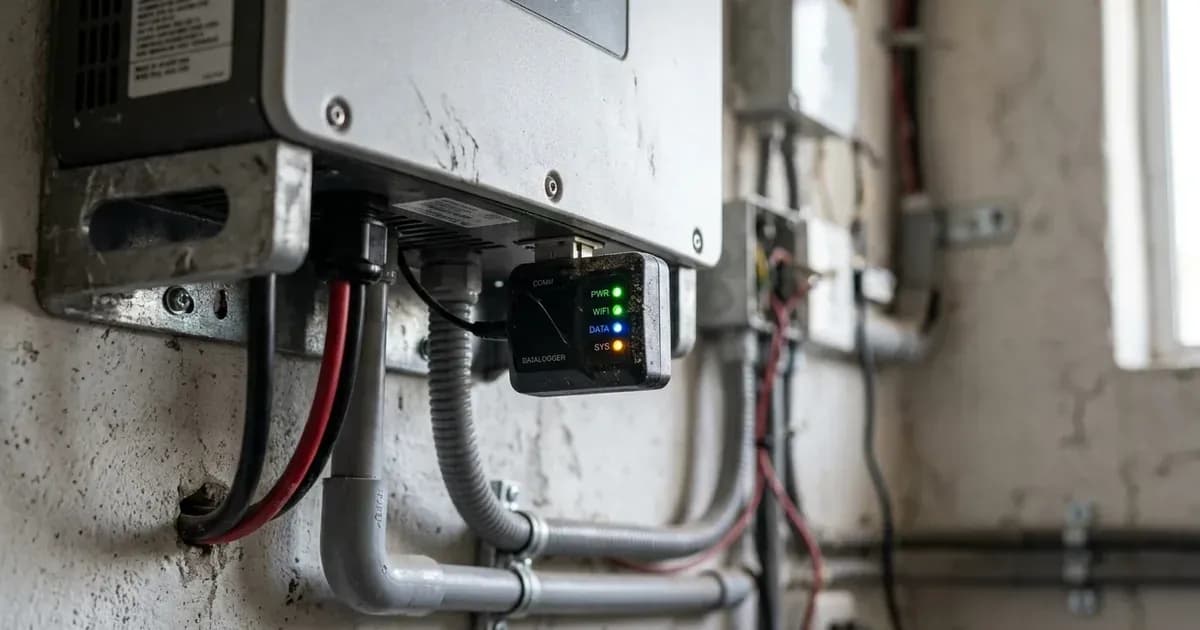
- Verify Connection: Once configured, the inverter's Wi-Fi indicator light should show a stable connection. You can then open the PV Master app or log into the SEMS Portal at
www.semsportal.comto verify that your inverter is reporting data.
For GoodWe A-ES Series Inverters (using SolarGo app):
- Download the SolarGo App: Download the SolarGo app to your smartphone or tablet. This app is designed for A-ES series inverters.
- Follow In-App Instructions: The SolarGo app will guide you through the connection process.
- Verify Connection: After setup, check the inverter's Wi-Fi indicator and confirm data reporting on the SolarGo app or the SEMS Portal at
www.semsportal.com.
GoodWe Inverter WiFi Configuration Details
The following table summarizes the default Wi-Fi access point details for GoodWe ET and ES series inverters. These credentials are used for the initial connection to the inverter's built-in Wi-Fi access point.
Item | Detail | Inverter Series |
|---|---|---|
App Name | PV Master | ET, ES |
Initial Wi-Fi AP Name | | ET, ES |
Initial Wi-Fi AP Password | | ET, ES |
Web Interface IP | | ET, ES |
App Name | SolarGo | A-ES |
Troubleshooting Common WiFi Connection Issues
WARNING: Troubleshooting and physical interaction with the inverter should only be performed by qualified personnel. Always review the Safety section before proceeding.
If your GoodWe inverter is not connecting to Wi-Fi or reporting data to the SEMS Portal, consider these troubleshooting steps.
Symptom detail | Likely cause | Fix |
|---|---|---|
Inverter Wi-Fi not visible or connectable | Wi-Fi module issue or incorrect reset | Short press the reset button on the inverter. Before doing so, ensure all power sources (AC grid, PV strings, and battery) are disconnected and wait at least 5 minutes for internal capacitors to discharge. This action should only be performed by qualified personnel. If accessing the button requires opening the inverter cover, be aware that unauthorized modifications can void your warranty. The Wi-Fi LED will blink for a few seconds. This performs a Wi-Fi reset. |
Inverter not connecting to local Wi-Fi | Incorrect network credentials or module configuration | Long press the reset button (longer than 3 seconds). Before doing so, ensure all power sources (AC grid, PV strings, and battery) are disconnected and wait at least 5 minutes for internal capacitors to discharge. This action should only be performed by qualified personnel. If accessing the button requires opening the inverter cover, be aware that unauthorized modifications can void your warranty. The Wi-Fi indicator will double blink until reconfigured. This performs a Wi-Fi reload, requiring you to re-enter your local network details via the app or web interface. |
Data not appearing on SEMS Portal | Inverter not connected to internet or portal registration issue | Ensure your local Wi-Fi network has internet access. Verify the inverter is successfully connected to your local Wi-Fi. Check your SEMS Portal account for correct inverter registration. If the inverter displays fault codes, refer to our guide on GoodWe ET, A-ES, ES Fault Codes. |
Inverter not starting or showing no output | Underlying inverter fault, not just communication | Check the inverter's display for any error messages or fault codes. If the inverter is not producing power, consult our GoodWe ET, A-ES, ES Troubleshooting Overload and No-Output Guide. |
Safety
Working with solar inverters involves high voltages and electrical currents. Always prioritize safety to prevent injury or damage to equipment.
- Qualified Personnel Only: Installation, operation, and maintenance must be performed by qualified electricians. Do not attempt internal repairs or modifications if you are not trained and authorized.
- High Voltage/Electric Shock: There is a danger of high voltage and electric shock. Before touching any internal parts of the inverter or communication modules, disconnect all power sources (AC grid, PV strings, and battery). Wait at least 5 minutes after disconnecting all power to allow internal capacitors to discharge.
- Hot Surface: The inverter surface can exceed 60℃ during operation. Allow the inverter to cool down before touching it, especially after prolonged operation.
- Unauthorized Modifications: Do not open the inverter cover or change components without the manufacturer's authorization. Doing so can void your warranty and create a safety hazard.
- Battery Breaker: For batteries without a built-in DC breaker, an external DC breaker (≥40A for ET, 70A for A-ES, ≥125A for ES) is required. Ensure this is installed correctly.
- AC Breaker: An external AC breaker is necessary for on-grid connection to isolate the inverter from the utility grid. Its absence can lead to inverter damage if an electrical short circuit occurs on the grid side.
When to call a technician instead
While many Wi-Fi and monitoring issues can be resolved with basic troubleshooting, there are situations where professional assistance is required.
You should call a qualified technician or GoodWe service center if:
- The inverter consistently fails to connect to your Wi-Fi network despite following the reset and reload procedures.
- The inverter displays persistent fault codes that are not resolved by simple restarts or checks.
- You are unable to access the inverter's web interface or app, even after connecting to its direct Wi-Fi access point.
- The inverter is not producing power or charging the battery, and you suspect an internal fault rather than a communication issue.
- Any physical damage is observed on the inverter or its communication ports.
- You are uncomfortable performing any of the electrical checks or troubleshooting steps yourself.
Attempting unauthorized repairs or modifications can void your warranty and pose significant safety risks. Always consult the official GoodWe documentation or a certified professional for complex issues.
Still showing the fault? Book a technician
If the steps above did not clear it, tell us the inverter or battery and the exact code. We pass it to a technician who covers your city; visit charges are quoted before they come.
How this pays for the site: the technician or verifier pays SolarNevs a fixed introduction fee. Nobody pays to be recommended, and you are free to use our free guides instead.
Frequently asked questions
What is the GoodWe SEMS Portal?
The GoodWe SEMS Portal is an online monitoring system for your GoodWe solar inverter, accessible via `www.semsportal.com` or through a dedicated mobile application to view your system's performance data.
What is the default WiFi password for GoodWe ET and ES inverters?
For GoodWe ET and ES series inverters, the initial Wi-Fi AP password is `12345678`. This password is used to connect directly to the inverter's access point during the initial setup process.
Which mobile app should I use for my GoodWe inverter?
GoodWe ET and ES series inverters use the PV Master app for configuration and monitoring. GoodWe A-ES series inverters use the SolarGo app.
How do I reset my GoodWe inverter's WiFi settings?
To reset the Wi-Fi settings on GoodWe ET, ES, and A-ES inverters, **first ensure all power sources (AC grid, PV strings, and battery) are disconnected and wait at least 5 minutes for internal capacitors to discharge. This action should only be performed by qualified personnel. If accessing the button requires opening the inverter cover, be aware that unauthorized modifications can void your warranty.** Then, short press the reset button. The Wi-Fi LED will blink for a few seconds to indicate the reset is complete.
What is the web interface IP address for GoodWe ET and ES inverters?
The web interface IP address for GoodWe ET and ES series inverters is `10.10.100.253`. You can access this IP address in a web browser when connected directly to the inverter's Wi-Fi access point.
References
- GoodWe ET Series User Manual — accessed 23 August 2026
- GoodWe A-ES Series User Manual — accessed 23 August 2026
- GoodWe ES Series User Manual — accessed 23 August 2026
Related guides
More from inverter errors & fixes.