Tesla Inverter Wi-Fi Settings Guide for Pakistan
Updated 7 September 2026 · By SolarNevs Research Desk, Dealer surveys + verified sources · 2 sources · Method ↗
Key Takeaways
- Tesla Industries Pakistan inverters use a default Wi-Fi password of
12345678. - Your home Wi-Fi network must operate on the 2.4 GHz band; 5 GHz is not supported.
- The official app is TESLA LIVE, but WatchPower or SmartESS may also be used.
- Always verify the RJ45 pinout for BMS communication to prevent damage.
- If you encounter persistent issues, contact a qualified technician to avoid voiding your warranty.
How do I connect my Tesla Inverter to Wi-Fi for monitoring?
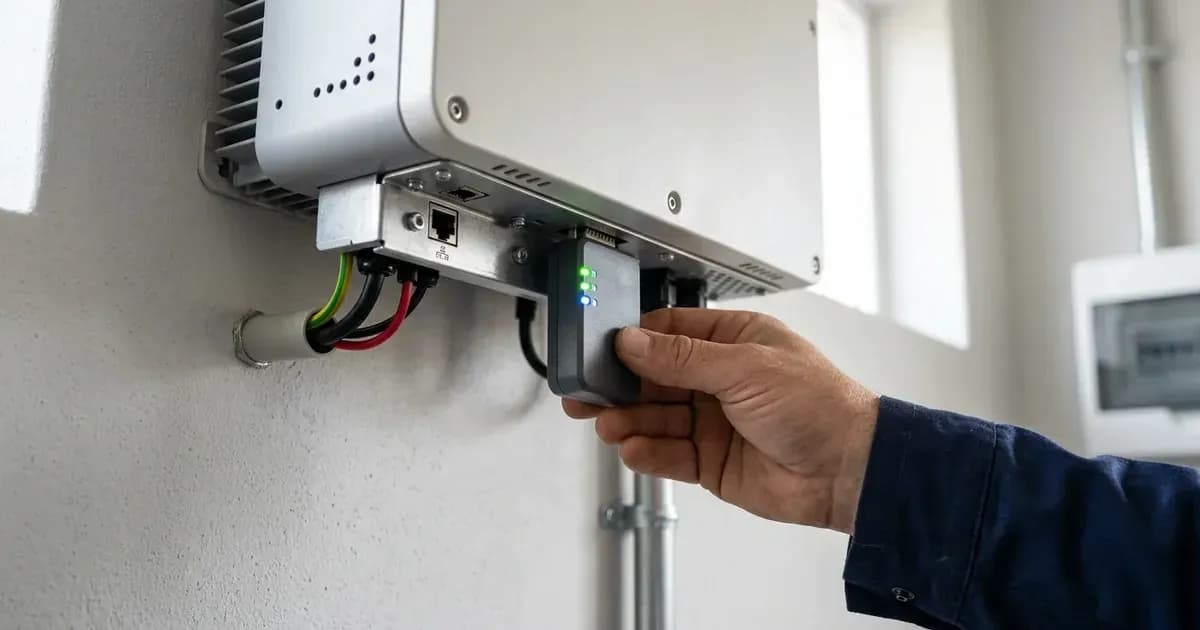
Connecting your Tesla Industries Pakistan solar inverter to Wi-Fi allows you to monitor its performance and status remotely. The process involves installing a compatible app, pairing your smartphone with the inverter's Wi-Fi datalogger, and then connecting the datalogger to your home's 2.4 GHz Wi-Fi network. Remember that Tesla Industries (Pvt) Ltd is an indigenous Pakistani manufacturer founded in 1992 and has no affiliation with Tesla, Inc. / Tesla Motors (USA).
Wi-Fi Configuration Steps for Tesla Inverters
Follow these steps to set up Wi-Fi monitoring for your Tesla Industries Pakistan inverter. These steps apply to models like the Infinity HLE, HSC, HSE, InfiniSolar, and Axpert VM series, which are built on the Voltronic Power OEM platform.
Step 1: Install the Monitoring Application
First, download the appropriate monitoring app to your smartphone.
- For Tesla Industries' official app: Search for "TESLA LIVE" in your app store. Note that the TESLA LIVE app was delisted from Google Play in late 2024. For Android, official-store Voltronic apps like WatchPower Wi-Fi or SmartESS are the recommended path. Sideloading TESLA LIVE APKs from third-party archives is an installer practice with security risks and is not a recommended DIY step.
- For Voltronic-based models:
- On iOS, search for "WatchPower" in the Apple Store.
- On Android, search for "WatchPower Wi-Fi" in the Google Play Store.
- For InfiniSolar or Infinity hybrid series dataloggers, "SolarPower" or "SmartESS" applications are typically used.
- Register your account: Open the installed app, tap "Register," and fill in the required information, including your email and a password. You will also need to scan the Wi-Fi datalogger's Part Number (PN) or QR barcode, usually found on a label on the datalogger itself.
Step 2: Pair Your Smartphone with the Datalogger's Access Point (AP)
Next, you will connect your smartphone directly to the inverter's Wi-Fi module.
- Access smartphone Wi-Fi settings: Go to the Wi-Fi settings on your smartphone.
- Connect to the datalogger's SSID: Look for a Wi-Fi network name (SSID) that matches the Wi-Fi module's Part Number (PN) or serial number, as printed on its barcode label (e.g.,
WIFI_PN...). - Enter the default password: When prompted, enter the default password
"12345678". - Confirm local connection: Return to the monitoring app and confirm that a local connection has been established.
Step 3: Select Your Home Wi-Fi Router (2.4 GHz)
Now, configure the datalogger to connect to your home internet.
- Navigate to Wi-Fi Config: Within the monitoring app, find the "Wi-Fi Config" or Network setup page.
- Select your home Wi-Fi SSID: Choose the name of your local home Wi-Fi router from the list.
- Crucial Network Requirement: Your home Wi-Fi router must be operating on the 2.4 GHz band. Tesla inverter dataloggers do not support 5 GHz networks. If your router broadcasts both, ensure you select the 2.4 GHz option.
- Enter home router password: Input the password for your home Wi-Fi network.
Step 4: Confirm and Establish Cloud Telemetry
Finalize the connection to enable remote monitoring.
- Confirm settings: Tap "Confirm" in the app to save the Wi-Fi credentials to the datalogger module. This completes the Wi-Fi configuration between the module and your internet.
- Verify status indicator: The Wi-Fi status indicator on your inverter's LCD display should transition from flashing to solid, indicating a successful connection to the cloud servers. You should now be able to monitor your inverter remotely.
Common Wi-Fi Connection Issues and Solutions
Symptom detail | Likely cause | Fix |
|---|---|---|
Smartphone cannot find datalogger SSID | Datalogger not powered, or too far from inverter | Ensure inverter is on; check datalogger is securely plugged in; move phone closer to inverter. |
Cannot connect to datalogger AP, password rejected | Incorrect default password entered | Re-enter default password |
Datalogger connects to phone but not home Wi-Fi | Home Wi-Fi is 5 GHz, not 2.4 GHz | Configure your home router to broadcast a 2.4 GHz network; select this network in the app. |
TESLA LIVE app not installing on Android | App delisted from Google Play Store | Search for "WatchPower Wi-Fi" or "SmartESS" on Google Play instead; sideloaded TESLA LIVE APKs from third-party archives carry a malware risk and are best left to your installer. |
Inverter LCD Wi-Fi indicator keeps flashing | Datalogger failed to connect to cloud servers | Re-check home Wi-Fi password; ensure internet connection is stable; restart inverter and datalogger. |
Monitoring Apps and BMS Communication
Tesla Industries Pakistan inverters, particularly those based on the Voltronic Power platform, offer various monitoring options and specific requirements for battery communication.
Monitoring Applications
The primary monitoring app released by Tesla Industries (Pvt) Ltd is TESLA LIVE. However, due to its delisting from Google Play in late 2024, for Android, official-store Voltronic apps like WatchPower Wi-Fi or SmartESS are the recommended path. Sideloading TESLA LIVE APKs from third-party archives is an installer practice with security risks and is not a recommended DIY step. For Axpert-based models, WatchPower (iOS) and WatchPower Wi-Fi (Android) are common applications used with plug-in Wi-Fi datalogger dongles. InfiniSolar and Infinity hybrid series dataloggers typically use SolarPower or SmartESS applications. For more options, you can explore general inverter monitoring apps in our guide on inverter-monitoring-apps-compared-shinephone-vs-soliscloud-vs-fusionsolar-vs-sems-vs-solarman.
Wi-Fi Datalogger Details
The Wi-Fi module creates its own access point during setup. Its default AP SSID will match the module's Part Number (PN) or serial number, which is typically printed on a barcode label on the datalogger itself. The default AP password for these modules is "12345678". It is critical that the home Wi-Fi network you connect to is a 2.4 GHz band, as 5 GHz networks are not supported.
BMS Communication Port & RJ45 Pin Assignment
When connecting lithium battery packs (such as Pylontech, Dyness, or Livoltek) to your Tesla inverter, the inverter's BMS communication port uses an RJ45 connector. It is crucial to use a custom communication cable that matches the specific pin assignment to avoid damage. The manual specifies the following pinout for the BMS Communication Port:
PIN # | Definition / Signal Name | Hardware Function |
|---|---|---|
PIN 1 | RS232TX | RS232 Transmit data (display / debugging) |
PIN 2 | RS232RX | RS232 Receive data |
PIN 3 | RS485B | RS-485 Differential Data Line B (BMS Comm) |
PIN 4 | NC | No Connection |
PIN 5 | RS485A | RS-485 Differential Data Line A (BMS Comm) |
PIN 6 | CANH | Controller Area Network High (CAN-H) |
PIN 7 | CANL | Controller Area Network Low (CAN-L) |
PIN 8 | GND | Signal Ground |
The default BMS RS485 baud rate is 9600 bps. A critical caution: standard direct pass-through Ethernet cables must NOT be connected directly between the battery BMS and the inverter without verifying the pinout. Pin 1 and Pin 2 carry RS232 voltages that can damage lithium battery BMS communication boards if plugged into standard RJ45 ports. For specific battery brands, refer to guides like dyness-bms-alarm-and-cable-pinout-guide or pylontech-bms-communication-fault-troubleshooting.
Safety
Always prioritize safety when working with solar inverters. High-voltage DC shock hazards are present. Solar array open-circuit voltages run in the hundreds of volts DC — up to 500VDC on the larger single-phase Infinity HLE 6KW/8KW and Axpert VM III TWIN (450VDC max on HLE 3KW, Axpert VM II, and Infini Solar VIII; 80VDC on the PWM Axpert PVS; 550VDC on the single-phase HSC 6kW IP65), and up to 1000VDC on three-phase HSC 10/12kW and Infini Plus series. Always check your specific model's VOC limit before stringing panels. These high DC voltages can create persistent, lethal electrical arcs.
Internal high-voltage DC bus capacitors retain dangerous electrical charges even after the inverter is shut down. Technicians must wait at least 5 minutes after isolating all power sources (PV, battery, and AC grid) before removing any chassis covers.
Ensure your inverter is installed in an appropriate environment. Infinity HLE, HSE, and Axpert series inverters have an IP21 rating, meaning they are designed for indoor installation in a dry, ventilated, dust-controlled area. Installing them outdoors or exposing them to moisture can lead to corrosion, short circuits, and will void the warranty. Tesla HSC series inverters, however, are IP65 rated and suitable for outdoor, weather-sealed installation.
When to call a technician instead
While basic Wi-Fi setup is often a DIY task, there are situations where professional assistance is necessary. If you experience persistent connection failures after following all steps, suspect hardware damage to the Wi-Fi datalogger, or if the inverter displays communication errors (e.g., Warning 32: Communication failure between inverter and display panel), it is best to contact a qualified solar technician. Attempting internal repairs or making incorrect connections, especially with BMS cables, can damage your equipment and potentially void your inverter's 1-Year to 2-Year official repair/replacement warranty. For general information on the brand, visit the Tesla-PK Solar Inverter Price in Pakistan 2026 page.
Still showing the fault? Book a technician
If the steps above did not clear it, tell us the inverter or battery and the exact code. We pass it to a technician who covers your city; visit charges are quoted before they come.
How this pays for the site: the technician or verifier pays SolarNevs a fixed introduction fee. Nobody pays to be recommended, and you are free to use our free guides instead.
Frequently asked questions
What is the default Wi-Fi password for Tesla inverters?
The default Wi-Fi password for Tesla Industries Pakistan inverter dataloggers is '12345678'. This password is used to connect your smartphone directly to the inverter's Wi-Fi module during the initial setup process.
Which Wi-Fi frequency band do Tesla inverters support?
Tesla Industries Pakistan inverter Wi-Fi dataloggers require a 2.4 GHz Wi-Fi network for connection. They do not support 5 GHz networks, so ensure your home router is configured to broadcast on the 2.4 GHz band.
What is the official monitoring app for Tesla inverters in Pakistan?
The official mobile monitoring application released by Tesla Industries Pakistan is TESLA LIVE. For Voltronic-based models, WatchPower or SmartESS apps are also commonly used, depending on the inverter series and datalogger type.
Can I use a standard Ethernet cable for BMS communication with my Tesla inverter?
No, standard direct pass-through Ethernet cables must NOT be connected directly between the battery BMS and the inverter without verifying the pinout. Pin 1 and Pin 2 carry RS232 voltages that can damage lithium battery BMS communication boards if plugged into standard RJ45 ports. Always ensure the inverter is fully isolated from all power sources (PV, battery, AC grid) and internal capacitors have discharged (wait 5 minutes) before making any physical connections, and be aware that incorrect wiring can void your warranty. Refer to the 'Safety' section of this guide for full precautions.
Why is the TESLA LIVE app not available on Google Play for Android?
The TESLA LIVE app was delisted from Google Play in late 2024. For Android, official-store Voltronic apps like WatchPower Wi-Fi or SmartESS are the recommended path. Sideloading TESLA LIVE APKs from third-party archives is an installer practice with security risks and is not a recommended DIY step.
References
- Axpert VM IV-4K6K-TWIN Off-grid manual — accessed 23 August 2026
- Tesla Industries Pakistan Official Web Portal — accessed 23 August 2026
Related guides
More from inverter errors & fixes.