Sunsynk Datalogger Lights: What Green, Red, and No LEDs Mean
Updated 16 September 2026 · By SolarNevs Research Desk, Dealer surveys + verified sources · 4 sources · Method ↗
Key Takeaways
- If your Sunsynk datalogger shows no LED lights, the issue is either a lack of power or a faulty unit.
- A solid green light on the datalogger indicates a conflict with its assigned static IP address.
- These LED lights provide physical diagnostic information before you begin network troubleshooting.
- For no lights, first check the inverter's status; for a green light only, reconfigure the datalogger's IP settings.
- Any physical repair involving internal components or voltage measurement on the inverter requires a registered person.
What the Sunsynk Datalogger Lights Indicate
Datalogger LED State | Underlying Root Cause | Verification & Diagnostic Test | Resolution & Action Steps | Performed By |
|---|---|---|---|---|
No Lights (Green & Red Off) | Loss of 12V DC inverter power or hardware failure | Check inverter "Normal" LED; test 12V DC on DB9 (Pin 5 GND, Pin 9 +12V); test 9–12V across C9 capacitor | Contact support for C9 capacitor repair authorisation, or swap and rebind datalogger | Registered Electrician / Support |
Solid Green Light Only | Network IP address conflict | Datalogger holds unreserved static IP matching another network client | Turn off router, join SSID | System Owner (Homeowner) |
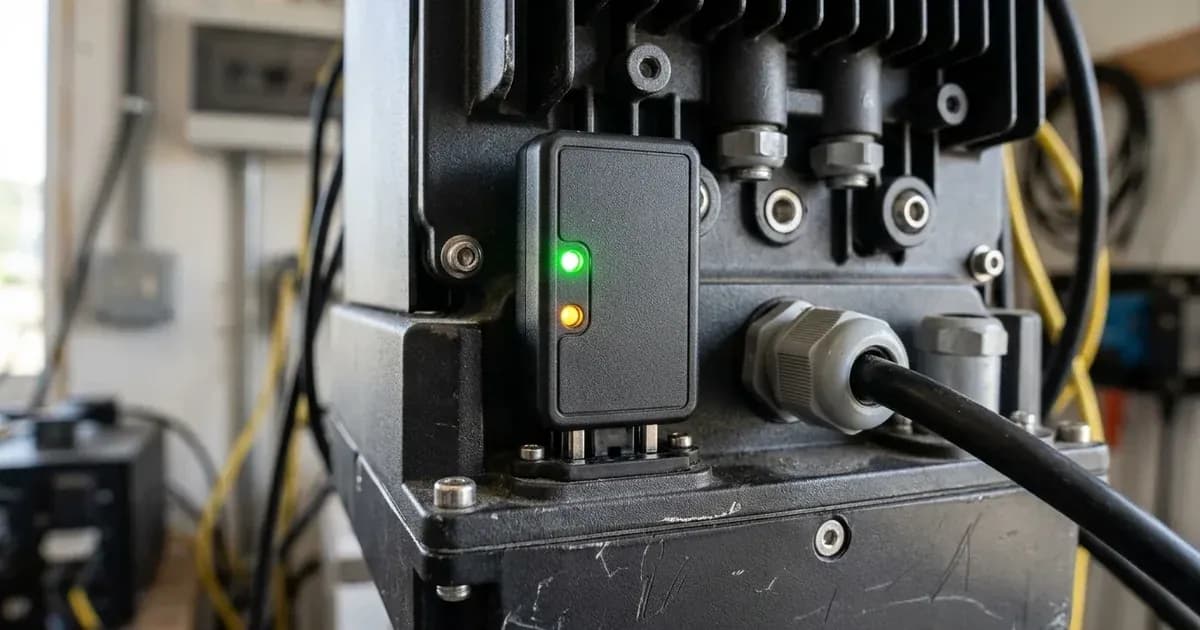
The Sunsynk datalogger uses LED lights to provide a basic visual status of its operation and connection. Understanding these indicators can help you diagnose common communication issues between your inverter and the Sunsynk Connect Cloud platform. If your datalogger shows no lights, it typically points to a power supply problem or a hardware fault. If it displays only a green light, this usually signals a conflict with its network IP address.
Understanding Your Datalogger's Status
The Sunsynk datalogger is a critical component that enables your inverter to communicate with the Sunsynk Connect Cloud. It transmits data for remote monitoring and management. The LED lights on the datalogger are the first physical indicators of its operational state. Sunsynk's documentation specifically addresses two primary light states for troubleshooting: when there are no lights at all, and when only a green light is displayed. These states guide you towards checking power, physical connections, or network settings.
No Green or Red LED Lights on the Datalogger
If your Sunsynk datalogger is not displaying any green or red LED lights, and your inverter is offline, this indicates one of two potential issues: the datalogger itself is faulty, or it is not receiving power from the inverter.
To diagnose this:
- Check Inverter Status: Ensure the 'Normal' LED on your inverter is lit, and that the system power flow (for Grid, Load, PV, and Battery) appears correct on the inverter display.
- Check Power Supply: Measure the 12V DC voltage between Pin 5 (GND) and Pin 9 (+12V) of the DB9 serial port where the datalogger connects.
- Contact Support: If there is no voltage present at the DB9 port, contact Sunsynk Support for further assistance.
- Replace Datalogger: If power is present but the datalogger shows no lights, it may be faulty. You would need to replace it with a known working datalogger, unbind the original unit from your Sunsynk Connect account, and then add the new one.
A specific cause for a datalogger showing no lights can be a failure of the C9 capacitor on the inverter's Wi-Fi board. This capacitor prevents power from reaching the datalogger. If this is suspected, measuring the voltage across C9 (which should be 9-12V) can confirm the fault. Removing this non-essential component requires third-party repair authorisation from Sunsynk Support.
Datalogger Shows Green Light Only
When your Sunsynk datalogger displays only a green light, it typically means there is an IP address conflict on your network. This often happens if the static IP button was enabled during the initial connection, but the assigned static IP address was not reserved, allowing another device on your network to use the same IP.
To resolve this issue:
- Turn off your router.
- Connect to the Datalogger's Hotspot: On your device (phone or computer), connect to the datalogger's Wi-Fi hotspot. The SSID will be 'EAP-*' (where * are the last 5 digits of the datalogger's serial number). The password is '12345678'.
- Access Configuration Page: Open an internet browser on the same device and enter the IP address
10.10.10.1into the address bar. - Disable Static IP: When the datalogger's configuration page opens, scroll down until you find the option "Use the following static IP address". Untick this option and click 'Save'.
- Restart Router: Turn your router back on. The datalogger should now attempt to connect to your network using DHCP.
What You Can Change Yourself, and What You Cannot
As a system owner, you can safely observe the LED lights on your Sunsynk datalogger and follow the steps to resolve a "green light only" issue by reconfiguring its static IP setting. You can also perform basic checks like ensuring the datalogger is securely inserted into the inverter's DB9 port.
However, any work that involves opening the inverter enclosure, measuring voltage on internal components or the DB9 serial port pins, or replacing hardware like the datalogger or internal capacitors (such as the C9 capacitor), must be performed by a registered person. Such work requires appropriate electrical safety knowledge and tools, and it can affect your Certificate of Compliance (CoC) if not done correctly by a qualified professional.
What the Published Sources Do Not Tell You
Sunsynk's official support documentation provides clear troubleshooting steps for two specific datalogger LED states: "green light only" and "no Green or Red LED lights". However, the documentation does not detail the meaning of other potential LED states, such as a solid red light, flashing green, flashing red, or various combinations of these lights, which might indicate different operational statuses or errors.
Furthermore, while the documentation mentions server addresses like ukiot.sunsynk.net:51100 for UK users, it does not specify equivalent server addresses or hostnames for other global regions, including South Africa. This means that if you encounter network connection issues that require manual server address configuration, you may need to seek region-specific guidance.
If your datalogger lights indicate a network issue (e.g., after resolving a green light only state, it still does not connect), the next steps involve checking your Wi-Fi network settings, router configurations (like 2.4GHz band, WPA2 security), and firewall ports. These network configuration details are covered in our guide on fixing Sunsynk inverter offline issues.
Frequently asked questions
What does it mean if my Sunsynk datalogger shows no lights?
If your Sunsynk datalogger shows no green or red LED lights, it typically indicates either a faulty datalogger or a lack of power from the inverter. You should check if the inverter's 'Normal' LED is lit and verify the 12V DC power supply to the datalogger.
Why is my Sunsynk datalogger showing only a green light?
A Sunsynk datalogger showing only a green light usually means there is an IP address conflict. This occurs when the static IP setting was enabled during initial connection, but the assigned IP address is not reserved, and another device on your network is using the same IP.
How do I fix a Sunsynk datalogger that shows only a green light?
To fix a datalogger showing only a green light, first turn off your router. Then, connect to the datalogger's Wi-Fi hotspot (SSID 'EAP-****', password '12345678'), open a browser to `10.10.10.1`, untick 'Use the following static IP address', and save the setting. Finally, turn your router back on.
Can I fix a datalogger with no lights myself?
You can check basic power indicators and connections. However, if the issue requires measuring voltage on the DB9 serial port, replacing the datalogger, or addressing internal inverter components like the C9 capacitor, this work should be performed by a registered person.
What other datalogger LED states are there?
Sunsynk's published documentation primarily details troubleshooting for two states: 'green light only' and 'no Green or Red LED lights'. Other potential LED states, such as solid red, flashing green, or flashing red, are not described in the available support materials.
References
- Sunsynk Support - Datalogger shows green light only — accessed 27 August 2026
- Sunsynk Support - Datalogger shows no LED lights — accessed 27 August 2026
- Sunsynk Support - Removing a faulty C9 capacitor — accessed 27 August 2026
- Sunsynk Support - Connecting to the Internet — accessed 27 August 2026
Related guides
More from inverter errors & fixes.