Victron VE.Bus Virtual Switch Generator Start/Stop Configuration Guide
Updated 6 September 2026 · By SolarNevs Research Desk, Dealer surveys + verified sources · 1 source · Method ↗
Key Takeaways
- The Victron VE.Bus Virtual Switch allows MultiPlus and Quattro inverter/chargers to automatically start and stop a generator.
- Configuration is performed using the VEConfigure software, specifically within the Virtual Switch settings.
- The 'dedicated generator control' option must be selected for this functionality.
- For Quattro systems with mains backup, the 'stop generator when AC2 available' setting can automate generator shutdown upon grid return.
How do I configure the Victron Virtual Switch for automatic generator start/stop?
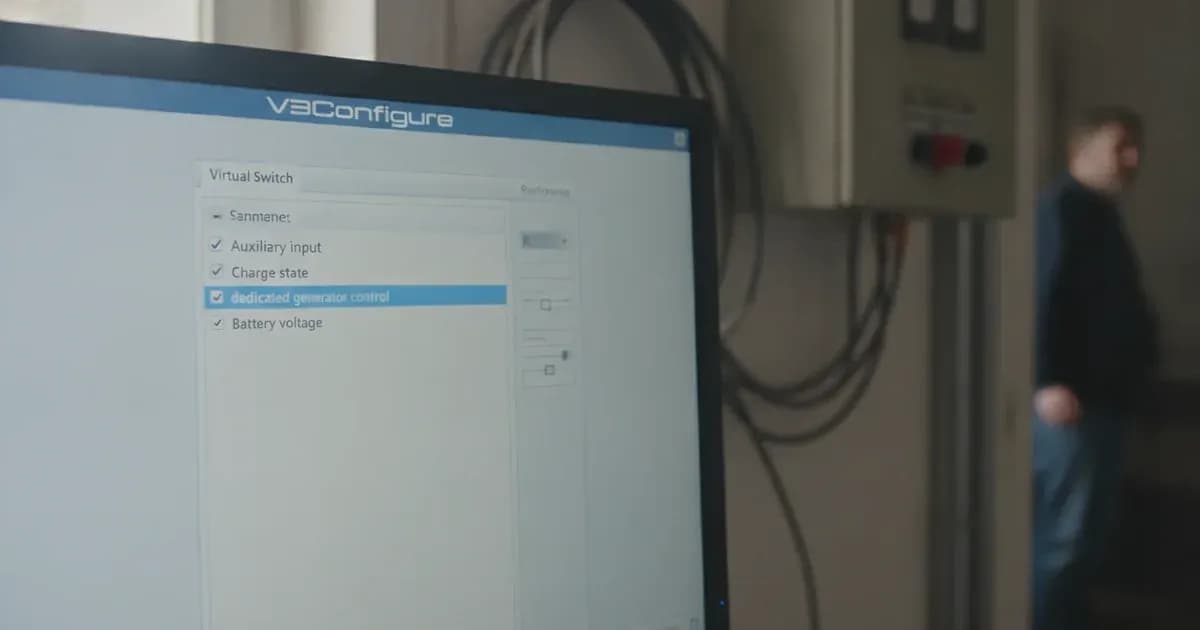
The Victron VE.Bus Virtual Switch enables MultiPlus and Quattro inverter/chargers to automatically manage a generator's operation. This feature is configured through the VEConfigure software, where you select 'dedicated generator control' within the Virtual Switch settings.
System Requirements and Initial Checks
Before configuring the Virtual Switch for generator control, ensure your system meets the following requirements and perform these initial checks:
- Compatible Inverter/Charger: Verify that your Victron inverter/charger is a MultiPlus, Quattro, or another VE.Bus enabled model. The feature is supported on MultiPlus and Quattro models of 3000VA and above, MultiPlus-II models, and MultiPlus Compact models. It is also available for MultiPlus models from 500VA to 1600VA, including 500VA, 800VA, 1200VA, and 1600VA units.
- Generator Compatibility: Ensure your generator is equipped with an automatic start/stop input that can be triggered by a dry contact relay. The Victron unit's auxiliary relay will provide this signal.
- VEConfigure Software: Have the latest version of VEConfigure installed on your computer. This software is essential for accessing and modifying the Virtual Switch settings.
- Connection to Inverter/Charger: Establish a connection between your computer and the Victron inverter/charger using the appropriate interface (e.g., MK3-USB).
- System Wiring: Confirm that your generator's remote start/stop input is correctly wired to the auxiliary relay contacts of your Victron inverter/charger.
Key Virtual Switch Settings
The Virtual Switch offers several parameters to control generator operation. The specific values for these settings depend on your battery type, system size, and operational preferences.
Setting Name | Purpose | Configuration Notes |
|---|---|---|
Virtual Switch | Activates the generator control feature. | Select 'dedicated generator control' in VEConfigure. |
Start Voltage | Battery voltage threshold below which the generator will start. | Set based on your battery's minimum recommended voltage. |
Stop Voltage | Battery voltage threshold above which the generator will stop. | Set based on your battery's desired charge level. |
Minimum Run Time | Ensures the generator runs for a set duration once started. | Prevents short cycling of the generator. |
Quiet Hours | Defines periods when the generator should not operate, even if conditions are met. | Useful for noise restrictions or specific times of day. |
Test Run | Schedules periodic generator test runs. | Ensures generator readiness and maintains engine health. |
'stop generator when AC2 available' | (Quattro only) Stops generator if mains power returns to AC-in 2. | Wire generator to AC-in 1 and mains to AC-in 2. |
Step-by-Step Configuration Guide
Configuring the VE.Bus Virtual Switch for automatic generator start/stop involves using the VEConfigure software. Follow these steps to set up the feature for your MultiPlus or Quattro inverter/charger.
1. Access VEConfigure and the Virtual Switch Settings
First, connect your computer to your Victron inverter/charger using the appropriate interface.
- Open the VEConfigure software on your computer.
- Once connected, navigate to the 'Virtual Switch' section within the software interface.
2. Enable Dedicated Generator Control
Within the Virtual Switch settings, you will find options for its functionality.
- Select the option labeled 'dedicated generator control'. This activates the specific logic for automatic generator management.
3. Configure Generator Start/Stop Parameters
After enabling dedicated generator control, you will need to set the operational parameters. The Victron documentation indicates that specific example values for configuring the Virtual Switch feature are not provided, only a general statement that they should match battery type and system. Therefore, consult your battery manufacturer's specifications and your system's design for appropriate values.
- Start Voltage: Set the battery voltage level at which the generator should automatically start. This is typically a low voltage threshold to prevent deep discharge of your batteries.
- Stop Voltage: Define the battery voltage level at which the generator should stop. This is usually a higher voltage, indicating that the batteries have reached a sufficient state of charge.
- Minimum Run Time: Configure a minimum duration the generator must run once started. This prevents the generator from cycling on and off too frequently.
- Quiet Hours (Optional): If needed, set specific time periods during which the generator should not operate, even if the start conditions are met.
- Test Run (Optional): Schedule periodic test runs to ensure the generator is functional and to keep its engine in good condition.
4. Configure 'Stop Generator When AC2 Available' (Quattro Models Only)
For Quattro models, an additional feature can be configured if you are using both a generator and grid mains power for backup.
- Ensure your generator is wired to AC-in 1 and the mains supply is wired to AC-in 2 of your Quattro.
- In VEConfigure, locate and check the box for the 'stop generator when AC2 available' feature.
- With this box checked, the Quattro system will automatically stop the generator once mains power is available again on AC-in 2.
Safety: Generator and Electrical Systems
Working with generators and high-voltage electrical systems carries significant risks. Always prioritize safety.
- Isolate Power: Before making any wiring changes or connections to your Victron inverter/charger or generator, ensure all power sources (AC mains, battery, PV, generator) are completely isolated and locked out.
- Insulated Tools: Use only insulated tools when working on electrical connections to prevent accidental short circuits. A spanner across a battery bank can short hundreds of amps, causing severe burns and equipment damage.
- Ventilation: Ensure adequate ventilation around your generator to prevent carbon monoxide buildup. If your generator charges batteries, ensure the battery compartment is also well-ventilated, especially for lead-acid batteries that can produce hydrogen gas during charging.
- Professional Installation: If you are unsure about any aspect of wiring or configuration, consult a qualified electrician or Victron certified installer. Incorrect wiring can damage equipment, void warranties, and create dangerous conditions.
When to Call a Technician Instead
While configuring the Virtual Switch is a DIY task, there are situations where professional assistance is recommended:
- Complex Wiring: If your generator's remote start/stop wiring is complex or unclear, or if you need to install new wiring, a qualified electrician can ensure safe and correct connections.
- Persistent Issues: If, after carefully following the configuration steps, your generator does not start or stop as expected, and you have verified all settings and connections, a technician can diagnose underlying electrical or communication faults.
- System Integration: For large or complex off-grid or hybrid systems, integrating a generator with other components (e.g., solar chargers, grid-tie inverters) may require expert knowledge to optimize performance and safety.
- Warranty Concerns: Any physical modification to your Victron inverter/charger beyond standard wiring connections should be performed by an authorized service provider to avoid voiding your warranty.
Frequently asked questions
What Victron models support the VE.Bus Virtual Switch for generator control?
The VE.Bus Virtual Switch for generator control is supported on MultiPlus, Quattro, or other VE.Bus enabled inverter/chargers. This includes MultiPlus and Quattro models of 3000VA and above, MultiPlus-II models, and MultiPlus Compact models.
How do I enable dedicated generator control in VEConfigure?
To enable dedicated generator control, open VEConfigure, navigate to the Virtual Switch section, and select 'dedicated generator control' from the available options.
What is the 'stop generator when AC2 available' feature for?
This feature is specific to Quattro models used in backup systems. It allows the system to automatically stop the generator once mains power is restored to AC-in 2, assuming the generator is wired to AC-in 1.
Can I use the Virtual Switch for generator control on smaller MultiPlus models?
Yes, the feature is also available for MultiPlus models from 500VA to 1600VA, including 500VA, 800VA, 1200VA, and 1600VA units.
Where can I find specific voltage thresholds for generator start/stop?
The Victron documentation states that specific values for Virtual Switch settings, such as voltage thresholds, depend on your battery type and system requirements. These are configured within VEConfigure but are not universally specified.
References
- Victron Energy VE.Bus Virtual Switch Generator Start/Stop — accessed 23 August 2026
Related guides
More from what to buy — and how not to get cheated.