Huawei Inverter FusionSolar App Setup Guide
Updated 6 September 2026 · By SolarNevs Research Desk, Dealer surveys + verified sources · 2 sources · Method ↗
Key Takeaways
- The most likely cause of app connection issues is an incorrect password or connection method.
- Always ensure your Huawei inverter is powered on and its WLAN/WiFi is active as a first check.
- WARNING: Never attempt to work on inverter wiring or connections while the system is powered on.
- Stop DIY troubleshooting and call a qualified technician if you suspect internal device faults or persistent wiring problems.
How do I set up the Huawei FusionSolar app for my inverter?
Setting up the monitoring app for your Huawei inverter involves connecting your smartphone directly to the inverter's WLAN hotspot or configuring an optional Smart Dongle for internet access. The specific app you use depends on your inverter model: the FusionSolar App is for SUN2000-(2KTL-5KTL)-L1 series inverters, while the FusionHome App is for SUN2000L-(2KTL-5KTL) series inverters. The first step is to identify your inverter model and download the correct application.
Diagnosis
Follow these steps to diagnose and resolve common issues during your Huawei inverter app setup.
- Identify your Inverter Series:
- Check the inverter model label. Huawei SUN2000-(2KTL-5KTL)-L1 series inverters use the FusionSolar App. Huawei SUN2000L-(2KTL-5KTL) series inverters use the FusionHome App.
- Result: Using the wrong app will prevent connection.
- Download the Correct App:
- Action: Download the FusionSolar App from Google Play (Android) or App Store (iOS, for viewing PV plant info only) for L1 series. Download the FusionHome App for Android 4.4 or later, or iOS 8.0 or later for L series.
- Result: Ensure the app is compatible with your phone's operating system and your inverter model.
- Verify Inverter Power and WLAN/WiFi Activation:
- Action: Ensure your inverter is fully powered on. For L1 series, an external WLAN antenna connects to the ANT port. For L series, an external WiFi antenna connects to the ANT port. The inverter's WLAN/WiFi hotspot must be active.
- Result: If the inverter is off or the antenna is not connected, the hotspot will not be visible.
- Connect to the Inverter's WLAN/WiFi Hotspot:
- Action: On your smartphone, go to WiFi settings and search for the inverter's hotspot. For L1 series, the hotspot name is SUN2000-SN. For L series, the hotspot name is SUN2000L-SN (where SN is the last 8 digits of the inverter's serial number).
- Result: If the hotspot is not found, recheck step 3.
- Enter the Initial WLAN/WiFi Password:
- Action: For L1 series, the initial password is found on the inverter's side label or by scanning a QR code (iOS). For L series, the initial password is "Changeme" for the first login, or can be found by scanning a QR code (iOS).
- Result: An incorrect password will prevent connection to the hotspot.
- Login to the App:
- Action: After connecting to the hotspot, open the app and attempt to log in. For L1 series, there is no initial installer login password; you set it manually during the first login. For L series, the initial installer password is "00000a".
- Result: Incorrect login credentials will prevent access to inverter settings and monitoring.
- Check Smart Dongle Status (if applicable):
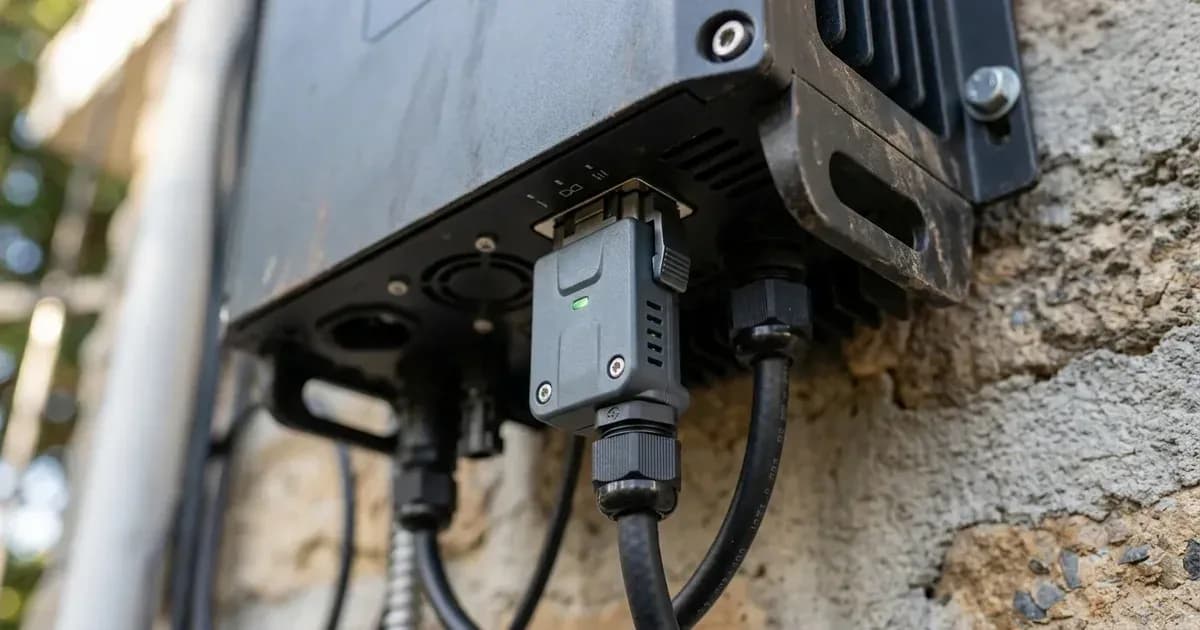
- Action: If you are using a Smart Dongle (SDongleA-05 WLAN-FE or SDongleA-03 4G) for internet connectivity, ensure it is correctly installed and configured.
- Result: A misconfigured or faulty dongle will prevent remote monitoring and data upload.
Cause/fix table section
Symptom detail | Likely cause | Fix |
|---|---|---|
Cannot find inverter WLAN/WiFi hotspot | Inverter not powered on or WLAN/WiFi not active | Ensure inverter is on. Check the external WLAN/WiFi antenna connection to the ANT port. |
Cannot connect to inverter WLAN/WiFi hotspot | Incorrect hotspot name or password | Verify the hotspot name (SUN2000-SN for L1, SUN2000L-SN (where SN is the last 8 digits of the inverter's serial number) for L). For L1, check the inverter side label/QR code for password. For L, try "Changeme" or scan the QR code. |
App shows "Device Fault" (Code 2064) or similar internal error | Internal inverter fault | WARNING: Turn off the AC output switch and DC input switch, and then turn them on after 5 minutes. If the fault persists, contact your dealer or Huawei technical support. |
App cannot access internet or remote monitoring fails | Smart Dongle not installed or configured correctly | Install the appropriate Smart Dongle (SDongleA-05 WLAN-FE or SDongleA-03 4G) and follow its setup instructions to connect to your router or cellular network. |
Cannot log in to the app as installer | Incorrect installer password | For L1 series, set the password manually during first login. For L series, the initial password is "00000a". |
"Battery Abnormal" (Code 2068) | Battery fault, communication issue, or switch off | Check that the battery enabling/power/communications cable is correctly installed. Ensure the auxiliary power switch on the battery is ON. WARNING: Send a shutdown command on the app. Turn off the AC output switch, DC input switch, and battery switch. Then turn on the battery switch, AC output switch, and DC input switch in sequence after 5 minutes. If the fault persists, contact your dealer or Huawei technical support. |
App Setup and Configuration
The Huawei FusionSolar and FusionHome apps serve as the primary interface for monitoring, configuring, and troubleshooting your SUN2000 series inverter.
Direct WLAN/WiFi Connection
This method allows local access to your inverter's settings and real-time data.
- Power On Inverter: Ensure the Huawei SUN2000 inverter is powered on.
- Antenna Connection: For L1 series, connect the external WLAN antenna to the ANT port. For L series, connect the external WiFi antenna to the ANT port.
- App Download:
- For SUN2000-(2KTL-5KTL)-L1 series, download the FusionSolar App. It is compatible with Android (Google Play) and iOS (for viewing PV plant info only).
- For SUN2000L-(2KTL-5KTL) series, download the FusionHome App. It is compatible with Android 4.4 or later, and iOS 8.0 or later.
- Connect to Hotspot: On your mobile phone, enable WLAN/WiFi and search for the inverter's hotspot.
- For L1 series, the hotspot name is typically
SUN2000-SN. - For L series, the hotspot name is typically
SUN2000L-SN(where SN is the last 8 digits of the inverter's serial number).
- For L1 series, the hotspot name is typically
- Enter Password:
- For L1 series, the initial password is on the inverter's side label or can be obtained by scanning the QR code (iOS).
- For L series, the initial password is "Changeme" for the first login, or can be obtained by scanning the QR code (iOS).
- Login to App: Open the FusionSolar or FusionHome app.
- For L1 series, there is no initial installer login password; you will be prompted to set it manually upon first login.
- For L series, the initial installer password is "00000a".
- Access Functions: Once logged in, you can monitor power generation, view alarms, and adjust various settings.
Smart Dongle Configuration for Remote Access
For continuous remote monitoring and management, a Huawei Smart Dongle is required to connect your inverter to the internet via a router or 4G network.
- Install Smart Dongle:
- For L1 series, compatible dongles include SDongleA-05 (WLAN-FE) for Ethernet connection or SDongleA-03 (4G) for cellular data.
- Install the dongle into the designated USB port on the inverter.
- Connect to Router (WLAN-FE Dongle):
- If using an SDongleA-05 (WLAN-FE), connect it to your home or office router via an Ethernet cable or configure its WLAN settings to join your existing WiFi network through the app.
- Configure 4G (4G Dongle):
- If using an SDongleA-03 (4G), ensure a valid SIM card with data plan is inserted. The dongle will automatically attempt to connect to the cellular network.
- App Configuration: Use the FusionSolar or FusionHome app (connected locally via direct WLAN/WiFi first) to configure the Smart Dongle's network settings. This typically involves selecting the network type, entering WiFi credentials, or verifying 4G connection status.
- Cloud Connection: Once the Smart Dongle is configured and connected to the internet, your inverter data will be uploaded to the Huawei FusionSolar management system, allowing you to monitor your system remotely from anywhere.
App-Accessible Settings
Through the FusionSolar/FusionHome app, you can access and modify various inverter settings, including:
- Battery Charge Settings: For compatible batteries like LG-RESU (LG RESU7H and RESU10H), you can set control modes (Fixed charge/discharge, Maximum self-consumption, Time-of-use), enable/disable charging from the grid, and define end-of-discharge capacity (e.g., 12%–20% for L1 series). For L series, you can also set Max Charging Power (up to 3.500 kW) and Max Discharging Power (up to 3.500 kW), Full Charging Capacity (90.0% to 100.0%), and Full Discharging Capacity (12.0% to 20.0%).
- Grid Protection Thresholds: Modify grid undervoltage, overvoltage, underfrequency, and overfrequency protection thresholds with consent from your local power operator.
- AFCI Function: For L1 series, the Arc Fault Circuit Interrupter (AFCI) function is enabled by default and automatically detects arc faults. The app can be used to clear AFCI alarms manually if they trigger more than 5 times within 24 hours.
- Power Meter Configuration: Configure settings for compatible power meters. For L1 series, these include Huawei DDSU666-H and DTSU666-H, and third-party meters such as Gavazzi-EM340DINAV23XS1X08, Gavazzi-EM111DINAV81XS1X08, Gavazzi-EM112DINAV01XS1X08, CCS-WNC-3Y-400-MB, and CCS-WNC-3D-240-MB. For L series, compatible meters include CHINT-DDSU666, CCS-WNC-3Y-400-MB, Gavazzi-EM112DINAV01XS1X, Gavazzi-EM340DINAV23XS1X, and Gavazzi-EM111DINAV81XS1X.
Safety
Working with solar inverters involves high voltages and currents. Only qualified professionals or trained personnel, such as certified electricians, should perform installation, operation, and maintenance.
- Electrical Hazard: Always ensure all AC and DC power sources are disconnected before touching any wiring. The inverter contains high voltage even after power-off, taking up to 5 minutes to discharge to a safe voltage.
- Burn Hazard: The inverter's enclosure and heat sink can become hot during operation. Avoid touching these surfaces to prevent burns.
- Installation Environment: Install the inverter in a well-ventilated area, away from flammable or explosive materials. Do not install it within reach of children.
- Battery Safety: Battery short circuits can cause severe personal injury or fire. WARNING: Never connect or disconnect battery cables when the inverter is running. Ensure all DC switches and the battery switch are OFF before connecting battery cables.
When to call a technician instead
While app setup is often a DIY task, certain situations require professional intervention. You should call a qualified technician if:
- You consistently fail to connect to the inverter's WLAN/WiFi hotspot despite verifying power and passwords.
- The app displays persistent "Device Fault" (Code 2064) or "Monitoring Unit Faulty" (Code 61440) alarms after basic resets.
- You encounter a "Battery Abnormal" (Code 2068) alarm that does not clear after checking connections and cycling power.
- Physical damage to the inverter, wiring, or Smart Dongle is suspected.
- You need to adjust grid protection parameters, which often requires consent from your local power operator and specific technical knowledge.
- Any troubleshooting step involves opening the inverter's enclosure, as this is authorized-service work and could void your warranty.
- You are unsure about any electrical connections or safety procedures.
For more detailed troubleshooting on specific inverter issues, refer to our guide on Huawei Inverter Battery Abnormal Error.
Still showing the fault? Book a technician
If the steps above did not clear it, tell us the inverter or battery and the exact code. We pass it to a technician who covers your city; visit charges are quoted before they come.
How this pays for the site: the technician or verifier pays SolarNevs a fixed introduction fee. Nobody pays to be recommended, and you are free to use our free guides instead.
Frequently asked questions
Which app should I use for my Huawei inverter?
For SUN2000-(2KTL-5KTL)-L1 series inverters, use the FusionSolar App. For SUN2000L-(2KTL-5KTL) series inverters, use the FusionHome App.
How do I connect my phone to the Huawei inverter's WLAN hotspot?
Ensure the inverter is powered on. On your phone, search for a WLAN hotspot named SUN2000-SN (for L1 series) or SUN2000L-SN (where SN is the last 8 digits of the inverter's serial number) (for L series). The initial password for L1 series is on the side label or QR code (iOS); for L series, it is 'Changeme' or on the QR code (iOS).
What is a Huawei Smart Dongle used for?
A Smart Dongle, such as the SDongleA-05 (WLAN-FE) or SDongleA-03 (4G), allows your Huawei inverter to connect to a router for remote monitoring and management via the FusionSolar/FusionHome app, providing internet access to the inverter.
What is the initial installer login password for Huawei inverters?
For SUN2000-(2KTL-5KTL)-L1 series inverters, there is no initial login password; you set it manually during the first login. For SUN2000L-(2KTL-5KTL) series inverters, the initial installer password is '00000a'.
My Huawei inverter app connection keeps failing. What should I check first?
First, ensure your inverter is powered on and its WLAN/WiFi function is active. Verify you are connecting to the correct hotspot name (SUN2000-SN or SUN2000L-SN) and using the correct initial password for your specific inverter series.
References
- Huawei SUN2000-L1 User Manual — accessed 23 August 2026
- Huawei SUN2000L User Manual — accessed 23 August 2026
Related guides
More from inverter errors & fixes.