Victron Lynx Smart BMS and Lithium Smart Battery Setup Guide
Updated 7 September 2026 · By SolarNevs Research Desk, Dealer surveys + verified sources · 2 sources · Method ↗
Key Takeaways
- The Victron Lynx Smart BMS integrates a contactor, pre-charge circuit, and battery monitor for comprehensive battery management.
- Configuration and monitoring of both the Lynx Smart BMS and Lithium Smart Batteries are primarily performed using the VictronConnect app.
- Safety precautions, including proper electrical connections and isolation procedures, are critical during installation and maintenance.
- System performance relies on correct settings for cell voltage thresholds and temperature limits, all managed via VictronConnect.
Setting Up Your Victron Lynx Smart BMS and Lithium Smart Battery System
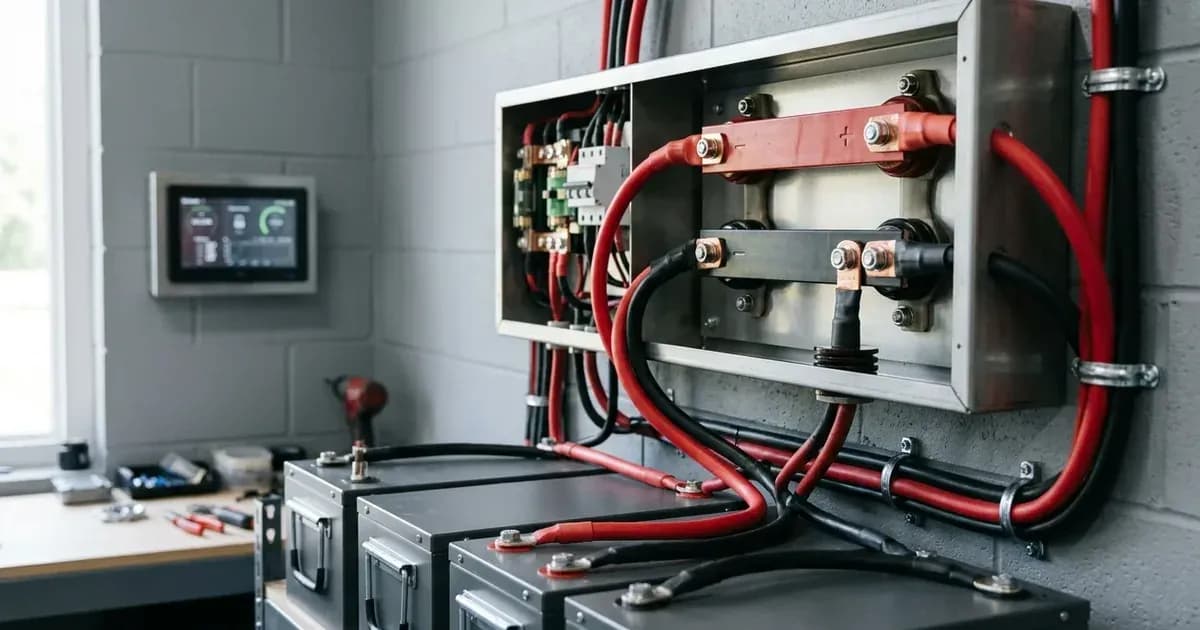
The Victron Lynx Smart BMS and Lithium Smart Battery system provides advanced battery management for energy storage applications. This guide outlines the essential steps for setting up and configuring these components, focusing on the integration of the Lynx Smart BMS with Victron Lithium Smart Batteries and communication with a Cerbo GX. The Lynx Smart BMS is a Battery Management System with an integrated contactor, pre-charge circuit, battery monitor, programmable relay, and AUX terminal, designed for parallel redundancy.
Understanding the Victron Lynx Smart BMS and Lithium Smart Battery
The Victron Lynx Smart BMS acts as the central control unit for Victron Lithium Smart Batteries. It protects the battery by monitoring cell voltages and temperatures, disconnecting loads or chargers when limits are exceeded. The BMS features an integrated contactor for high-current switching and a pre-charge circuit to safely connect the battery bank to the system.
Victron Lithium Smart Batteries are designed with various safety and operational features, working in conjunction with the BMS. Communication between the BMS and the batteries, as well as with a Cerbo GX for system monitoring, is fundamental to the system's operation. The VictronConnect app serves as the primary interface for setup, monitoring, and control of both the Lithium Smart Battery and the Lynx Smart BMS.
Configuring Your System with VictronConnect
Initial setup and ongoing adjustments for your Victron Lynx Smart BMS and Lithium Smart Batteries are managed through the VictronConnect app. This application allows for firmware updates, monitoring, and control.
Victron Lithium Smart Battery Settings
Key settings for the Lithium Smart Battery are configurable via VictronConnect:
Setting / Parameter | Specification / Action | Technical Reference |
|---|---|---|
Battery settings | Configurable via VictronConnect | "Battery settings" |
Battery temperature offset | Configurable via VictronConnect | "Battery temperature offset" |
Allowed-To-Charge minimum temperature | Configurable via VictronConnect | "Allowed-To-Charge minimum temperature" |
Cell under voltage pre-alarm threshold | Configurable via VictronConnect | "Cell under voltage pre-alarm threshold" |
Allowed-To-Discharge cell voltage | Configurable via VictronConnect | "Allowed-To-Discharge cell voltage" |
Battery Limits configuration | Configurable via VictronConnect | "Battery Limits configuration" |
Victron Lynx Smart BMS Settings
The Lynx Smart BMS also has configurable settings, accessible through VictronConnect:
Setting / Parameter | Specification / Action | Technical Reference |
|---|---|---|
Lynx Smart BMS settings | Configurable | "Lynx Smart BMS settings" |
Lynx Distributor settings | Configurable | "Lynx Distributor settings" |
To begin, download and install the VictronConnect app. Once installed, connect to your Lithium Smart Battery and Lynx Smart BMS to perform initial commissioning and firmware updates. The app also supports VictronConnect Instant readout and VictronConnect-Remote (VC-R) support for remote assistance.
Addressing Common Faults and Alarms
The Victron system provides various warnings and alarms to indicate operational issues. Understanding these can help in diagnosing and resolving problems.
Lithium Smart Battery Alarms
Code | Meaning | Fix Direction | Technical Reference |
|---|---|---|---|
W-SL11 | Under voltage warning (pre-alarm) | Check battery state of charge and charging sources. | "W-SL11: Under voltage warning (pre-alarm)" |
A-SL11 | Under voltage alarm | Immediate action required to prevent deep discharge. | "A-SL11: Under voltage alarm" |
A-SL9 | Over voltage alarm | Check charging sources and battery voltage limits. | "A-SL9 Over voltage alarm" |
A-SL22 | Under temperature alarm | Ensure battery is within operating temperature range. | "A-SL22: Under temperature alarm" |
A-SL15 | Over temperature alarm | Ensure battery is within operating temperature range. | "A-SL15: Over temperature alarm" |
E-SL119 | Settings data lost | Reconfigure settings via VictronConnect. | "E-SL119: Settings data lost" |
E-SL24 | Hardware failure | Contact authorised service personnel. | "E-SL24: Hardware failure" |
E-SL1 | Balancer failure | Contact authorised service personnel. | "E-SL1: Balancer failure" |
E-SL2 | Internal communication failure | Check communication cables and connections. | "E-SL2: Internal communitation failure" |
E-SL9 | Overlapped voltage error | Contact authorised service personnel. | "E-SL9: Overlapped voltage error" |
E-SL10 | Balancer update error | Attempt firmware update again; contact support if persistent. | "E-SL10: Balancer update error" |
Common System Faults
Several fault modes can occur, requiring specific troubleshooting:
- Cell imbalance: "How to recognise cell imbalance"
- Less capacity than expected: "Less capacity than expected"
- Battery very low terminal voltage: "Battery very low terminal voltage"
- BMS frequently disables the battery charger: "The BMS frequently disables the battery charger"
- System in OFF mode (Lynx Smart BMS): "System in OFF mode"
- Incorrect state of charge reading (Lynx Smart BMS Battery monitor): "Incorrect state of charge reading"
For detailed troubleshooting, consult the respective product manuals.
Installation Safety and Electrical Requirements
Installing the Victron Lynx Smart BMS and Lithium Smart Battery system involves working with high-voltage and high-current DC systems. Adherence to safety precautions is mandatory.
Important Warning: Always ensure all power sources, including PV arrays, batteries, and AC mains, are isolated before making or breaking any electrical connections. Use appropriate Personal Protective Equipment (PPE), including insulated gloves and eye protection. When tightening or disconnecting battery terminals, kill power first and use insulated tools. A spanner across a battery bank can short hundreds of amps, leading to severe injury or equipment damage.
The Lynx Smart BMS manual includes "Important warning" and "Safety Precautions" sections that must be reviewed before installation. The Lithium Smart Battery manual also details "General warnings", "Charge and discharge warnings", and "Transportation warnings".
Electrical connections for the Lynx Smart BMS include DC wires, RJ10 cable(s), BMS cables, Multiconnector, ATC/ATD-controlled loads and chargers, Remote on/off, and a Programmable relay. Connecting to a GX device, such as a Cerbo GX, is also part of the electrical connections for monitoring and control.
After all electrical connections are secure, power up the system for the first time following the manual's "Power up for the first time" procedure for the Lynx Smart BMS, and proceed with commissioning.
What the published sources do not tell you
While the Victron documentation provides comprehensive guidance, certain specific details are not explicitly provided in the available excerpts:
- Lynx Smart BMS Current Ratings: The specific current ratings, such as 500A or 1000A, for different Lynx Smart BMS models are not detailed.
- Detailed Lynx Smart BMS Error Codes: While the Lithium Smart Battery has a detailed error code list, the specific error codes and their meanings for the Lynx Smart BMS itself are not provided beyond general indications.
- Specific Setting Values and Ranges: Although categories for settings are listed (e.g., "Battery temperature offset", "Allowed-To-Charge minimum temperature"), the actual numerical values, default ranges, or recommended settings for various system configurations are not specified. These often vary by firmware version and specific battery models.
- Full Technical Specifications: Comprehensive technical specifications for both the Lynx Smart BMS and the Lithium Smart Battery, including detailed electrical characteristics, dimensions, and environmental limits, are not included in the provided documentation snippets.
- Step-by-Step Installation Procedures: While sections like "Connecting the BMS" and "Electrical connections" are mentioned, the verbatim, step-by-step instructions for these critical installation phases are not available.
- System Design Examples: The documentation mentions "System Design considerations and examples," but the actual examples or detailed considerations for various system architectures are not provided.
Users should consult the full, up-to-date manuals on the Victron Energy website for the most current and complete information regarding specific values, detailed procedures, and technical specifications.
Still showing the fault? Book a technician
If the steps above did not clear it, tell us the inverter or battery and the exact code. We pass it to a technician who covers your city; visit charges are quoted before they come.
How this pays for the site: the technician or verifier pays SolarNevs a fixed introduction fee. Nobody pays to be recommended, and you are free to use our free guides instead.
Frequently asked questions
How do I configure my Victron Lithium Smart Battery settings?
Battery settings, including temperature offset, minimum allowed-to-charge temperature, cell under voltage pre-alarm threshold, and allowed-to-discharge cell voltage, are configurable via the VictronConnect app. This app is used for setup, monitoring, and control.
What should I do if my Victron Lithium Smart Battery shows an under voltage warning?
An 'Under voltage warning (pre-alarm)' is indicated by W-SL11. This suggests the battery is approaching its lower voltage limit. Check the battery's state of charge and charging sources.
What are the common alarms for the Victron Lithium Smart Battery?
Common alarms include A-SL11 for 'Under voltage alarm', A-SL9 for 'Over voltage alarm', A-SL22 for 'Under temperature alarm', and A-SL15 for 'Over temperature alarm'. These indicate conditions outside safe operating parameters.
How do I update the firmware for my Victron Lynx Smart BMS or Lithium Smart Battery?
Firmware updates for both the Lithium Smart Battery and the Lynx Smart BMS are performed via the VictronConnect app. Ensure a stable connection during the update process to avoid interruption.
What should I do if my Lynx Smart BMS does not power up?
If the Lynx Smart BMS does not power up, refer to the troubleshooting section for 'Lynx Smart BMS does not power up' in the manual. This typically involves checking electrical connections and power sources.
References
- Victron Energy: Lithium Battery Smart Manual — accessed 29 August 2026
- Victron Energy: Lynx Smart BMS Manual — accessed 29 August 2026
Related guides
More from inverter errors & fixes.