Sunsynk Connect App: Monitoring and Managing Your Solar System in South Africa
Updated 16 September 2026 · By SolarNevs Research Desk, Dealer surveys + verified sources · 10 sources · Method ↗
Key Takeaways
- Sunsynk Connect provides remote monitoring of your solar system's real-time power flow and historical energy data.
- The generator icon in the power flow display only appears if the generator input is enabled in your inverter's auxiliary settings.
- Remote changes to inverter settings require "Allow Remote Access" to be enabled on the inverter and the user to have manager or owner permissions for the plant.
- Unbinding a Data Logger from a plant will permanently delete the plant's data history.
Understanding Your System's Power Flow in Sunsynk Connect
Once your Sunsynk inverter is successfully connected to the internet and reporting data, the Sunsynk Connect app or web portal (www.sunsynk.net) becomes your primary interface for remote monitoring and management. This platform allows you to see your system's real-time power flow, analyse energy generation and consumption, and adjust certain settings from anywhere.
If your inverter is not yet connected or is showing as offline, please refer to our guide on /za/guides/fixes/sunsynk-inverter-offline-connect-fix for troubleshooting connection issues.
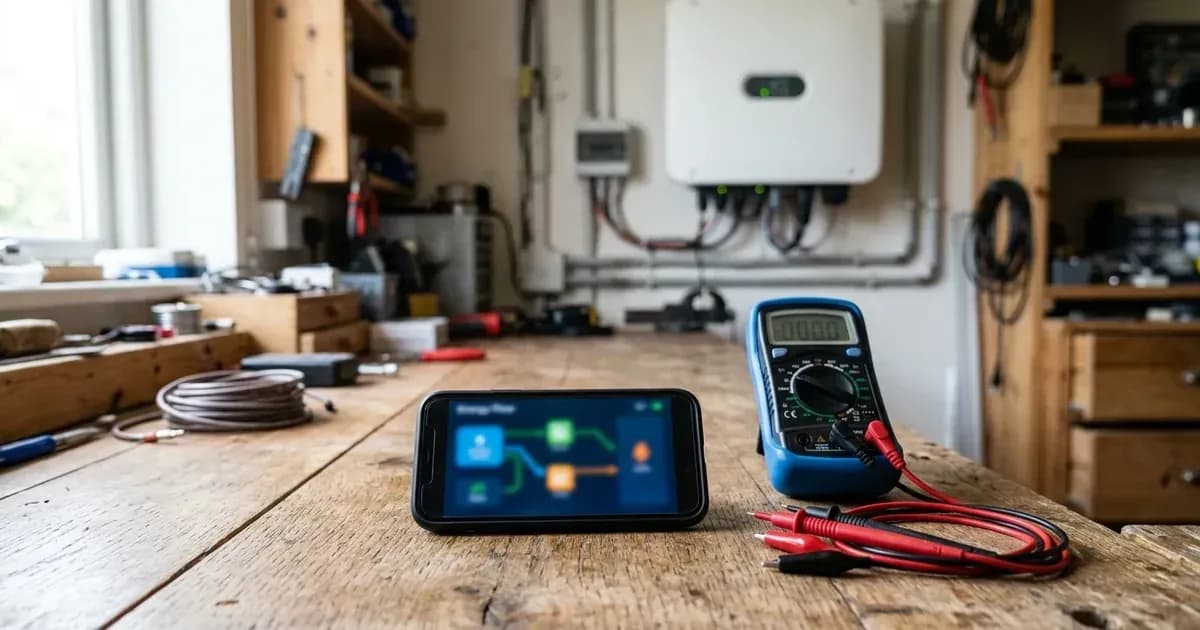
The main dashboard typically displays a dynamic diagram illustrating the flow of energy between your solar panels (PV), battery, grid (Eskom or municipality), and household load. This visual representation helps you understand where your energy is coming from and where it is being used at any given moment.
A common question for users with backup generators is why the generator icon might not appear in the power flow diagram. The generator icon will only be visible in the Sunsynk Connect app if the generator input has been enabled in your inverter's auxiliary settings. If your generator is connected but not showing, verify this setting on your inverter's display.
Analysing Energy Generation and Consumption
Beyond real-time power flow, Sunsynk Connect provides detailed graphs and data for analysing your system's performance over time. These energy generation graphs typically show:
- PV Generation: The amount of electricity produced by your solar panels.
- Battery Charge/Discharge: How much energy is stored in or drawn from your battery bank.
- Grid Interaction: Energy imported from or exported to the grid.
- Load Consumption: The total energy consumed by your household.
These graphs are crucial for understanding your energy patterns, identifying periods of high consumption, and optimising your system's operation. While the app provides this data, specific instructions on how to navigate different timeframes (e.g., hourly, daily, weekly, monthly, yearly) or customise the display within the app may vary by firmware version and are not fully detailed in the available documentation. You can typically select different views to see daily, weekly, or monthly summaries of these energy flows.
Managing Your Plant Details and Settings
Sunsynk Connect allows you to manage various aspects of your solar plant, from basic details to user access.
Feature / Setting | Configuration Path & Requirement | Operational Impact & Access Level |
|---|---|---|
Remote Inverter Control | Inverter LCD: | Requires Manager or Owner role; Visitor role is read-only |
Data Usage | Dedicated Wi-Fi / LAN Datalogger per unit | Uses ~30 MB data per month for telemetry and cloud sync |
Generator Monitoring | Inverter LCD: Enable in Auxiliary settings | Generator icon appears on power flow diagram only when active |
Multi-Inverter Paralleling | Register Master first, then add slave gateways | Added via portal or app using Datalogger Serial Number and Key |
Datalogger Unbinding | Sunsynk.net web portal unbind tool | Permanently and irreversibly deletes plant historical data |
Editing Plant Details
You can update key information about your installation within the app or portal. One important setting is Plant Capacity, which refers to the total installed solar capacity on your system, measured in kilowatt-peak (kWp). For example, if you have 12 solar panels, each rated at 405W, you would input a Plant Capacity of 4.86kWp. This figure helps the app accurately calculate efficiency and maximum solar power.
The app also offers options for Revenue Information: Valuation Method to help calculate potential savings or revenue. These methods include:
- Constant price: A fixed tariff for energy.
- Time of use price: A tariff that changes based on the time of day.
It is important to note that specific integrations like "Octopus Flux Integration" are designed for the UK market and may not be applicable to South African grid tariffs or regulations.
Adding and Managing Multiple Inverters
For systems with multiple inverters operating in parallel, Sunsynk Connect supports adding all of them to a single plant for unified monitoring. The prerequisite is that each inverter must have its own dedicated Data Logger, and all Data Loggers must be connected to Wi-Fi.
The process typically involves:
- Creating the plant using the Master inverter first.
- Then, using either the Sunsynk.net portal or the mobile app, navigate to the plant's equipment section.
- On the desktop portal, you would search for your plant in the Plant List, click the three dots under "More", and select "Add Gateway". You then enter the Data Logger serial number and key for the additional inverters.
- On the mobile app, from the home page, go to "Plants", select the relevant plant, then "Equipment", then "Gateway", and tap the '+' sign to scan a QR code or manually input the serial number and key.
User Permissions and Remote Control
Sunsynk Connect implements a permission structure that dictates what actions users can perform. If you are unable to change inverter settings using the app, it is likely because you have "visitor rights" to the plant. Only users with "manager" or "owner" rights can make remote changes. The plant creator is the "owner" and can share the plant with others, assigning different roles.
Role / Permission Level | Remote Settings Adjustment | Plant Sharing & Transfer | Inverter Configuration Requirement |
|---|---|---|---|
Visitor | View-only (cannot change settings) | No | N/A |
Manager | Allowed | No | |
Owner (Creator) | Allowed | Allowed (share by email or transfer) | |
For any remote changes to be effective, the "Allow Remote Access" setting must be enabled on the inverter's display. This setting is found under Settings -> Basic -> Remote -> Allow Remote Access.
Sharing and Transferring Plants
Only the plant owner (creator) can share a plant with other users or transfer its ownership. This is typically done through the portal by logging in, going to the "Plant List", finding the plant, clicking the three dots under "More", and selecting "Share". You can then add an account by email and assign a role.
For installers or administrators managing multiple client systems, Sunsynk Connect offers features to add customers to an administration account and define "Customer Types" with specific permissions, such as the ability to create plants, add gateways, share plants, delete inverters, perform firmware upgrades, and access operational data.
What you can change yourself, and what you cannot
As a system owner, you can typically adjust settings related to your energy usage patterns, such as battery charge/discharge timers, State of Charge (SOC) targets, and work modes, through the Sunsynk Connect app, provided you have the necessary permissions and "Allow Remote Access" is enabled on your inverter. These settings primarily affect how your system manages energy flow within your property.
However, critical grid-protection settings, export limits, and other parameters that affect the interaction with the national grid (Eskom or your municipality) are typically locked or require a registered and qualified electrical professional to adjust. Changing these settings without proper authorisation can violate your connection agreement, compromise grid stability, and invalidate your Certificate of Compliance (CoC). Always consult with a registered installer or electrician for any changes to grid-facing settings.
What the published sources do not tell you
While Sunsynk Connect provides robust monitoring and management capabilities, some details are not extensively documented in the available public sources:
- Detailed Power Flow and Energy Graph Navigation: Specific, step-by-step instructions on how to navigate through all possible timeframes (e.g., hourly, daily, weekly, monthly, yearly) or customise the display of energy graphs within the app are not fully elaborated. The existence of an "Option" tab for monthly/yearly data is mentioned but without further guidance.
- Specific Roles/Permissions for User Administration: While the concept of "Installer User Level Access" and "Customer Types" with permissions like "Create Plant, Add Gateway, Share Plant, Delete Inverter, Firmware Upgrades, and Operational Data" is mentioned, a comprehensive list or detailed breakdown of all possible user roles (e.g., "visitor," "manager," "owner") and their exact permissions is not provided.
- Downloading Operational Data: While "Operational Data" is listed as a permission that can be granted to customer types, the specific procedure or interface for downloading this data directly from the app or portal is not detailed in the available documentation.
- Regional Server Addresses: The documentation specifies
ukiot.sunsynk.net:51100as a server address for UK users andiot.e-linter.com:51100more generally. However, it does not provide specific server addresses or hostnames that might be regionally optimised for South African users, or confirm if all global traffic routes through these endpoints.
Frequently asked questions
How much data does Sunsynk Connect use?
Sunsynk Connect uses approximately 30 megabytes (30MB) of data per month. This data is used for the seamless transmission of inverter data to the Sunsynk Connect Cloud, allowing for remote monitoring and management of your solar energy system.
Why can't I change inverter settings remotely through Sunsynk Connect?
If you are unable to change inverter settings remotely, it is likely due to your user permissions. You may have only visitor rights to the plant. Contact the plant creator to request manager or owner rights. Additionally, ensure that 'Allow Remote Access' is enabled on your inverter's display under `Settings -> Basic -> Remote`.
How do I add multiple Sunsynk inverters to one plant in the app?
To add multiple inverters to a single plant, each inverter must have its own dedicated Data Logger, and all must be connected to Wi-Fi. First, create the plant using the Master inverter. Then, via the Sunsynk.net portal or the mobile app, you can add additional gateways by entering their Data Logger serial numbers and keys.
What happens if I unbind a Sunsynk Data Logger?
Unbinding a Data Logger from a plant will result in the loss of that plant's historical data. This action cannot be undone, so ensure you have downloaded any necessary data before proceeding with unbinding.
Why is the generator icon not showing in my Sunsynk Connect app?
The generator icon will only appear in the Sunsynk Connect app's power flow display if the generator input is enabled in your inverter's auxiliary settings. If you have a generator connected but the icon is absent, check your inverter's settings to ensure the generator function is active.
References
- Sunsynk Support: Connecting to the Internet — accessed 27 August 2026
- Sunsynk Support: Remote Monitoring with Sunsynk Connect — accessed 27 August 2026
- Sunsynk Support: How much cellular data does Sunsynk Connect use? — accessed 27 August 2026
- Sunsynk Support: How to edit plant details — accessed 27 August 2026
- Sunsynk Support: Unable to change settings remotely — accessed 27 August 2026
- Sunsynk Support: Adding multiple inverters to the same plant — accessed 27 August 2026
- Sunsynk Support: Unable to share or transfer plant — accessed 27 August 2026
- Sunsynk Support: Sharing a plant with a customer — accessed 27 August 2026
- Sunsynk Support: How to unbind a datalogger via Sunsynk.net — accessed 27 August 2026
- Sunsynk Support: Adding customer to administration account — accessed 27 August 2026
Related guides
More from sizing, net billing & installation.