Sunsynk BMS Communication Fault: Diagnosis and Fixes
Updated 16 September 2026 · By SolarNevs Research Desk, Dealer surveys + verified sources · 10 sources · Method ↗
Key Takeaways
- A communication fault means your Sunsynk inverter cannot "see" or control your battery, preventing charging or discharging.
- Always start by checking physical communication cables and verifying basic inverter settings.
- Sunsynk's documentation does not extensively cover third-party battery compatibility or specific protocol settings.
- Firmware updates or any work inside the inverter or battery enclosure require a registered professional.
What is a Sunsynk BMS Communication Fault?
If your Sunsynk inverter shows the battery as absent, or refuses to charge or discharge it, you may be experiencing a Battery Management System (BMS) communication fault. This article focuses on diagnosing and resolving issues related to the communication link between your Sunsynk inverter and its battery. For problems specifically related to the battery not charging or discharging due to other causes, refer to our guide on Sunsynk Battery Not Charging or Discharging.
How Battery Management Systems Communicate
The Battery Management System (BMS) is the "brain" of your battery, monitoring its state, protecting it from damage, and managing its charging and discharging cycles. For an inverter to work correctly with a battery, it needs to communicate with the BMS. This communication typically happens over specific protocols, such as Modbus or CAN, which allow the inverter to receive critical data like State of Charge (SOC), voltage, current, and temperature, and to send commands to the battery.
When communication fails, the inverter cannot get the necessary information from the battery. This often leads to the inverter treating the battery as if it's not connected, preventing it from performing essential functions like charging from solar panels or the grid, or supplying power to your home during load-shedding.
Troubleshooting Sunsynk BMS Communication Issues
Hardware / Battery System | Required Inverter Setting / Firmware | Diagnostic Check & Corrective Action |
|---|---|---|
Standard Sunsynk LV Lithium | Battery Type: Lithium; Activate Battery checked; correct Modbus protocol | Ensure interconnecting battery comms cables are identical lengths |
HV Batteries: Method 1 (Independent) | Inverter settings: Parallel bat1&bat2 disabled | Separate battery rack inputs; check matching voltage on LCD |
HV Batteries: Method 2 (Paralleled) | Inverter settings: Parallel bat1&bat2 enabled | Link BMS comms; set BMU number on BMU screen (password |
SUN-BATT Series | Standard Lithium settings | Perform manual BMS reset by holding front silver button for 12–15 seconds |
SSLB1 CATL Batteries | Hardware DIP switch positioning | Ensure DIP switches are not left Up/On/1 when disconnected from inverter |
App Telemetry Sync (L/G/W/X Series) | Datalogger firmware ≥ 4790123B24R; L Series IP65 ≥ 0x100B | Update datalogger/battery firmware to transmit individual cell data |
Resolving a communication fault typically involves checking physical connections, verifying inverter settings, and in some cases, addressing battery-specific issues.
1. Check Physical Connections
The most common cause of communication problems is a physical connection issue.
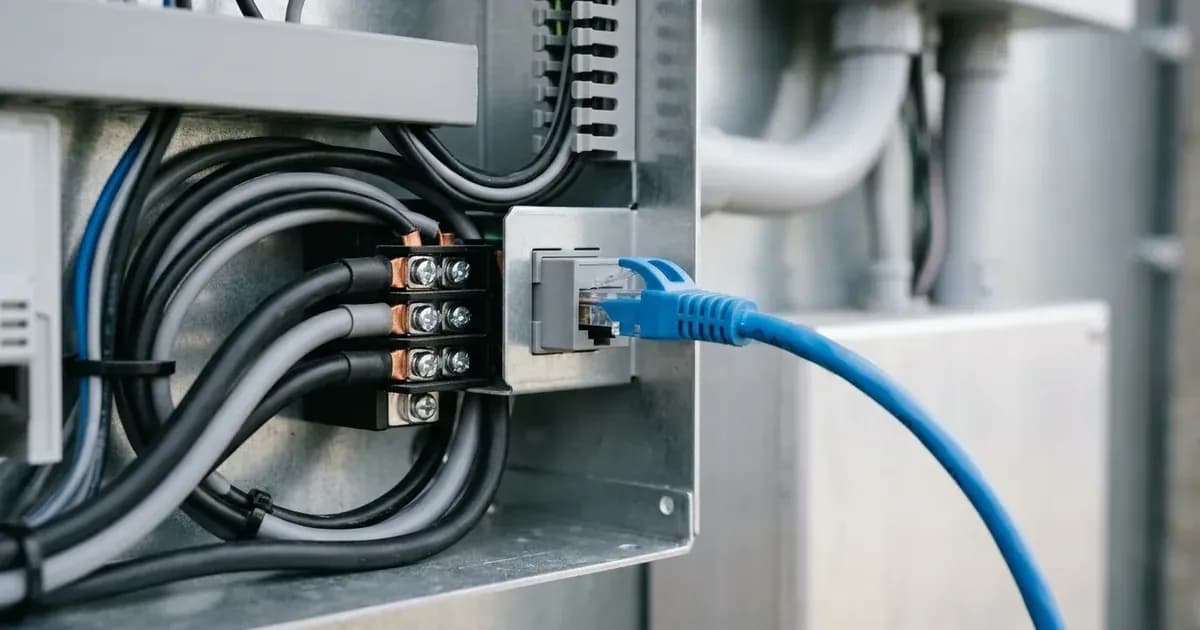
- Inspect Cables: Ensure all communication cables between the inverter and the battery (or battery bank) are securely plugged in at both ends. Look for any signs of damage, pinching, or corrosion on the cables or connectors.
- Cable Length: If you have multiple batteries connected in a daisy chain, ensure all interconnecting battery communication cables are the same length. Cables of differing lengths can cause battery unbalances and communication issues.
- HV Battery Connections: For High Voltage (HV) battery systems, ensure batteries are connected to the correct inputs on the inverter. If the voltage on the battery display does not match the voltage shown on the inverter, or fluctuates rapidly, the batteries may be connected to the wrong inputs.
2. Verify Inverter Settings
Incorrect inverter settings can prevent proper communication, even if physical connections are sound.
- Battery Type: For Sunsynk batteries, ensure the "Battery Type" setting on your inverter is set to "Lithium".
- Activate Battery: Confirm that the "Activate Battery" checkbox is selected in your inverter's settings.
- BMS Modbus Protocol: For the BMS to communicate correctly with the inverter, the battery must be set to the correct Modbus protocol. This protocol setting is specific to the battery model. Refer to your inverter's manual for a list of supported protocols and their corresponding battery models.
- BMU Number (HV Batteries): When adding HV batteries to an existing rack, you may need to adjust the BMU number. This is typically accessed on the BMU display by pressing the icon of a person and entering password
123. - Parallel Bat1&Bat2 (HV Batteries):
- If you are connecting HV battery racks independently (Method 1), "Parallel bat1&bat2" must be disabled in the inverter settings.
- If you are paralleling HV battery inputs and linking BMS communications (Method 2), "Parallel bat1&bat2" MUST BE ENABLED in the settings.
3. Battery-Specific Checks
Some batteries have specific procedures that can help re-establish communication.
- SUN-BATT Manual Reset: If you have a SUN-BATT battery, you can attempt a manual reset by pressing and holding the silver power button on the front panel for 12-15 seconds.
- DIP Switches (SSLB1 CATL): For SSLB1 CATL batteries, if any of the DIP switches are set to the Up, On, or 1 position when the battery is not connected to an inverter (power cables and BMS), it can send the battery into a fault state. Ensure DIP switches are correctly configured according to the battery manual when not connected.
- Firmware Updates: Battery firmware may need to be updated to resolve communication issues or to enable viewing of additional battery data on the mobile app. This often requires contacting Sunsynk technical support for assistance.
4. Monitoring Communication Data
Once communication is established, you can monitor battery data through the Sunsynk Connect app or other monitoring platforms.
- App Data Prerequisites: To view individual battery data (SOC, cell voltages, temperatures) on the mobile app for L Series, G Series, W Series, X Series, and newer models, your Datalogger must be upgraded to software revision
4790123B24Ror higher. The inverter firmware may also need an update to upload this additional battery data from the BMS to the app. For L Series IP65 Batteries, software revision0x100B (100B)or higher is required.
Third-Party Battery Compatibility
Many South African installations use third-party batteries like Pylontech, Hubble, or Freedom Won with Sunsynk inverters. Sunsynk's documentation primarily details compatibility with its own battery models. The manufacturer advises that electrical noise originating from batteries can cause interference affecting CT readings or third-party metering equipment, leading to inaccurate load readings when using third-party batteries.
no source we could reach publishes a comprehensive list of approved third-party batteries or their specific communication protocol settings. If you are using a third-party battery and experiencing communication issues, you will need to consult the battery manufacturer's documentation for specific communication requirements and compatibility with Sunsynk inverters.
What you can check yourself, and what you cannot
As a homeowner, you can safely perform several checks to diagnose a Sunsynk BMS communication fault:
- Visual Inspection: Check all communication cables for secure connections and visible damage.
- Basic Inverter Settings: Verify the "Battery Type" and "Activate Battery" settings in your inverter's menu.
- Battery Display: Check the battery's own display (if available) for any error codes or status indicators.
- Manual Reset: Perform a manual reset on your battery if the manufacturer's instructions allow (e.g., SUN-BATT manual reset).
However, certain tasks require a registered electrical professional:
- Firmware Updates: Updating the firmware on your inverter or battery should be done by a qualified technician.
- Internal Wiring: Any work involving opening the inverter or battery enclosure, or modifying internal wiring, requires a registered person. This work must be accompanied by a Certificate of Compliance (CoC) to ensure safety and adherence to electrical standards.
- Advanced Diagnostics: If basic troubleshooting does not resolve the issue, a professional can perform more in-depth diagnostics to identify underlying hardware or software problems.
- Charging with a DC Charger: If your battery voltage is very low, attempting to recover it with an external DC charger requires an electrically qualified or competent person. Over-voltage can damage lithium cells and cause fires.
What the published sources do not tell you
While Sunsynk provides valuable support documentation, there are some limitations regarding BMS communication:
- Comprehensive Third-Party Battery List: The manufacturer does not publish a comprehensive list of approved or compatible third-party batteries, nor does it provide specific protocol settings for them.
- Detailed Pinout Diagrams: While some pinout details are available for specific models like SSLB1, detailed communication cable pinout diagrams for all Sunsynk battery models are not extensively documented in the sources we checked.
- Specific Modbus Protocol Details: The documentation states that the correct Modbus protocol must be set, but it does not provide a detailed breakdown of which protocol corresponds to which battery model within the fetched articles.
- Firmware Update Instructions: While firmware updates are mentioned as a potential fix, detailed, user-facing instructions for performing these updates are not provided; users are typically directed to contact support.
Frequently asked questions
What does a Sunsynk BMS communication fault mean?
A BMS communication fault means your Sunsynk inverter is not receiving data from your battery's Battery Management System. This prevents the inverter from correctly charging or discharging the battery, often making the battery appear absent to the inverter.
How do I check if my Sunsynk inverter is communicating with the battery?
First, check the physical communication cables between the inverter and battery. Ensure they are securely connected and undamaged. Then, verify inverter settings such as 'Battery Type' and 'Activate Battery' are correctly configured for your Sunsynk battery model.
Can I use third-party batteries with a Sunsynk inverter?
Sunsynk's documentation primarily details compatibility with its own battery models. While third-party batteries are common, the manufacturer does not provide a comprehensive list of approved models or their specific communication protocol settings. Incorrect third-party battery use can lead to inaccurate load readings.
What inverter settings are important for Sunsynk battery communication?
For Sunsynk batteries, ensure 'Battery Type' is set to 'Lithium' and 'Activate Battery' is checked. The 'BMS Modbus protocol' must also be set to the correct protocol for your specific battery model to ensure proper communication.
When should I call a professional for a BMS communication fault?
You should call a registered electrical professional if basic checks of cables and inverter settings do not resolve the issue. Firmware updates for batteries or inverters, internal wiring inspections, or any work inside the inverter or battery enclosure require a qualified person and a Certificate of Compliance.
References
- Sunsynk Support Solutions — accessed 27 August 2026
- Sunsynk Support Solutions — accessed 27 August 2026
- Sunsynk Support Solutions — accessed 27 August 2026
- Sunsynk Support Solutions — accessed 27 August 2026
- Sunsynk Support Solutions — accessed 27 August 2026
- Sunsynk Support Solutions — accessed 27 August 2026
- Sunsynk Support Solutions — accessed 27 August 2026
- Sunsynk Support Solutions — accessed 27 August 2026
- Sunsynk Support Solutions — accessed 27 August 2026
- Sunsynk Support Solutions — accessed 27 August 2026
Related guides
More from inverter errors & fixes.