Victron Cerbo GX RuuviTag Bluetooth Sensor Setup Guide
Updated 6 September 2026 · By SolarNevs Research Desk, Dealer surveys + verified sources · 1 source · Method ↗
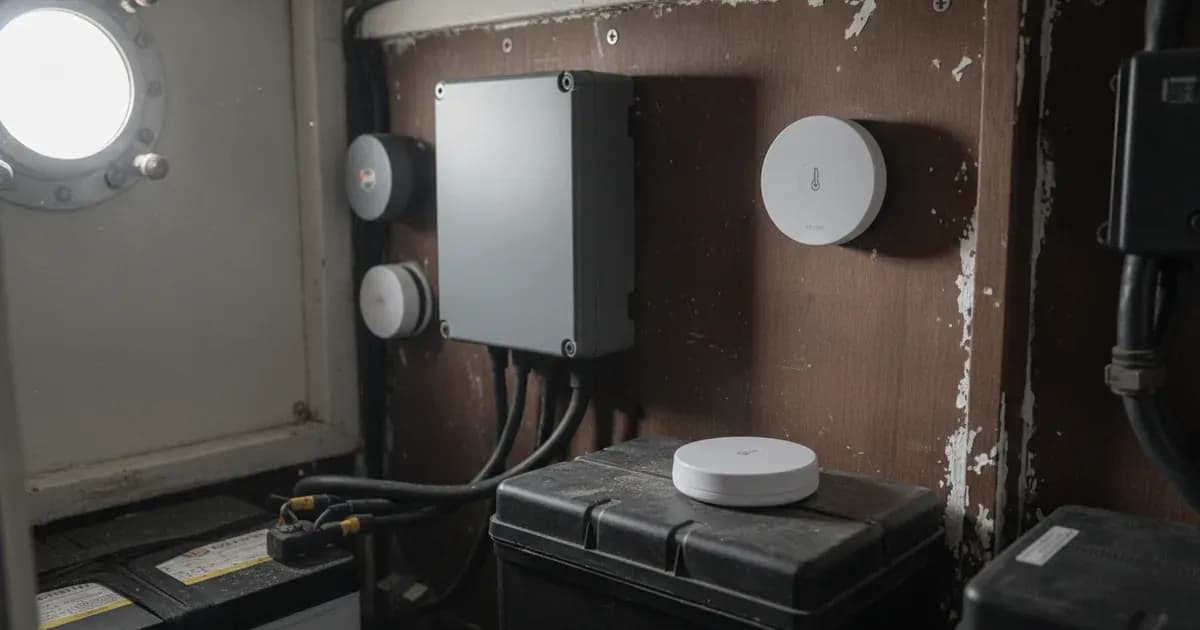
Key Takeaways
- Deploy Ruuvi wireless Bluetooth sensors for cable-free monitoring of battery bays, refrigeration, and cabin climates.
- Track real-time temperature, relative humidity, and air pressure on your GX display and VRM dashboard widgets.
- Install an external USB Bluetooth adapter on an extension cable if your Cerbo GX operates in engine rooms where CPU temperatures exceed 53°C.
- Use tested third-party USB dongles like the TP-Link UB400(UN) or Logilink BT0037 for reliable long-range reception.
How do you integrate RuuviTag Bluetooth environmental sensors with the Victron Cerbo GX?
Ruuvi sensors transmit temperature, humidity, and atmospheric pressure wirelessly to a GX device via Bluetooth broadcast advertisements. Venus OS automatically captures these data packets and integrates the readings into the device overview, custom dashboard widgets, and VRM cloud telemetry without requiring physical signal wiring.
Bluetooth Connectivity Requirements and Thermal Limits
Understanding the hardware architecture of GX Bluetooth integration ensures continuous monitoring reliability:
- Built-in vs Retrofit Hardware: Some GX devices have built-in Bluetooth, while others require an external USB adapter to communicate with wireless sensors.
- Thermal Protection Cut-off: On Cerbo GX units with internal Bluetooth, internal Bluetooth is disabled when CPU temperature exceeds 53 °C. In hot installations (such as marine engine rooms or unventilated utility enclosures), an external USB dongle prevents thermal telemetry loss.
- Range Extension: Even when built-in Bluetooth is available, adding a USB adapter can help extend range and overcome RF shielding from metal enclosures.
- Other Supported Wireless Sensors: The same Bluetooth connectivity architecture supports Mopeka Ultrasonic Bluetooth Sensors for wireless LPG and fluid tank level monitoring.
Supported and Tested USB Bluetooth Adapters
Victron has validated several standard commercial USB Bluetooth dongles for use with Venus OS:
Adapter Model / Part | Chipset / Description | Recommended Installation Context |
|---|---|---|
TP-Link UB400(UN) | Compact USB BLE dongle | Ideal for general domestic and mobile ESS installations |
Logilink BT0037 | Standard Bluetooth 4.0 adapter | Recommended for marine and off-grid power enclosures |
Kinivo BTD-400 | High-compatibility BLE transceiver | Suitable for extended-range sensor networks |
Insignia (NS-PCY5BMA2) | Standard USB Bluetooth transceiver | Widely available retail adapter for quick retrofits |
Ideapro USB bluetooth adapter | Compact BLE dongle | Reliable plug-and-play adapter for GX hardware |
Step-by-Step Sensor Pairing and Configuration Procedure
Adding Ruuvi environmental sensors to your Victron system involves a few straightforward setup steps:
- Enable Bluetooth on GX: On your Cerbo GX touch display or Remote Console, navigate to
Settings -> Bluetoothand ensure Bluetooth is enabled. - Activate the Sensor: Pull the clear plastic insulator strip from the RuuviTag battery compartment to power the internal CR2477 coin cell.
- Automatic Discovery: The Ruuvi sensor will appear automatically under
Settings -> Bluetooth -> Discovered devices. - Configure Sensor Roles: Select the discovered sensor and assign its specific role:
Battery compartment,Fridge,Freezer, orAmbient temperature. - Set Alarm Thresholds: Configure high and low temperature limits to trigger audible GX alarms and automated VRM email notifications.
To correlate environmental temperatures with electrical performance, link this telemetry with your battery monitor, a Lynx Distributor DC busbar, or a Victron MultiPlus-II setup.
Sensor Maintenance and Battery Preservation Guidelines
RuuviTag sensors operate for approximately 2 to 3 years on a standard CR2477 coin cell. Monitor sensor battery voltage on the VRM advanced metrics page and replace depleted cells before cold seasons. Ensure the silicone gasket is properly seated when closing the enclosure to maintain its IP67 weather resistance.
When to Seek Professional Support
If your Cerbo GX repeatedly drops sensor telemetry despite installing an external USB adapter, or if sensor readings show intermittent RF interference, consult an authorized Victron Energy installer to evaluate local RF propagation and USB bus power allocation.\n
Add a battery at a surveyed price
Installers quote supply and fitting of the battery on this page for your existing or new system.
How this pays for the site: installers pay SolarNevs a fixed introduction fee when we pass them a genuine enquiry. They cannot pay to appear higher, and our surveyed prices are published before any introduction. You can also take our dated price tables straight to any installer.
Frequently asked questions
What environmental data do RuuviTag sensors broadcast to the Cerbo GX?
RuuviTag sensors wirelessly broadcast ambient temperature, relative humidity, and atmospheric air pressure over Bluetooth Low Energy directly to the Cerbo GX.
How do I pair a RuuviTag sensor with Venus OS?
No manual pairing code is required. Simply activate the RuuviTag battery and enable Bluetooth in GX device settings; the sensor is automatically discovered in the Device List.
Why did my Cerbo GX internal Bluetooth stop detecting sensors in hot weather?
On GX devices with internal Bluetooth, the internal Bluetooth radio is automatically disabled when the CPU temperature exceeds 53°C to protect processor stability.
What external USB Bluetooth adapters are tested with the Cerbo GX?
Tested and recommended USB adapters include TP-Link UB400(UN), Logilink BT0037, Kinivo BTD-400, Insignia NS-PCY5BMA2, and Ideapro USB bluetooth adapters.
Can RuuviTag sensors trigger alarms on the VRM Portal?
Yes, you can configure minimum and maximum temperature alarm thresholds in Venus OS and receive email notifications via the VRM Portal.
References
- Victron Energy Connecting Supported Non-Victron Products Manual — accessed 23 August 2026
Related guides
More from what to buy — and how not to get cheated.